
Tip & Trick
Struggling to find files in your Microsoft ecosystem? Proper file naming conventions save time, reduce errors, and make collaboration seamless across Windows, OneDrive, and Office apps. These seven best practices will transform your digital organization.
Date-Based Prefix Format for All Files

Ever wasted minutes hunting for the latest version of a contract or proposal? A YYYYMMDD prefix (like 20240515Contract.docx) turns chaos into chronological order—no more guessing which file is "final."
Microsoft’s File Explorer automatically sorts these prefixes numerically, so 20240520Report.pdf always appears after 20240515_Draft.pdf. This works seamlessly across Windows, OneDrive, and SharePoint, making it ideal for legal deadlines or project milestones where timestamps are critical.
Perfect for freelancers, legal teams, or project managers juggling multiple versions—just add the date, and let sorting do the rest. ⚡
Project-Code Descriptors for Team Collaboration
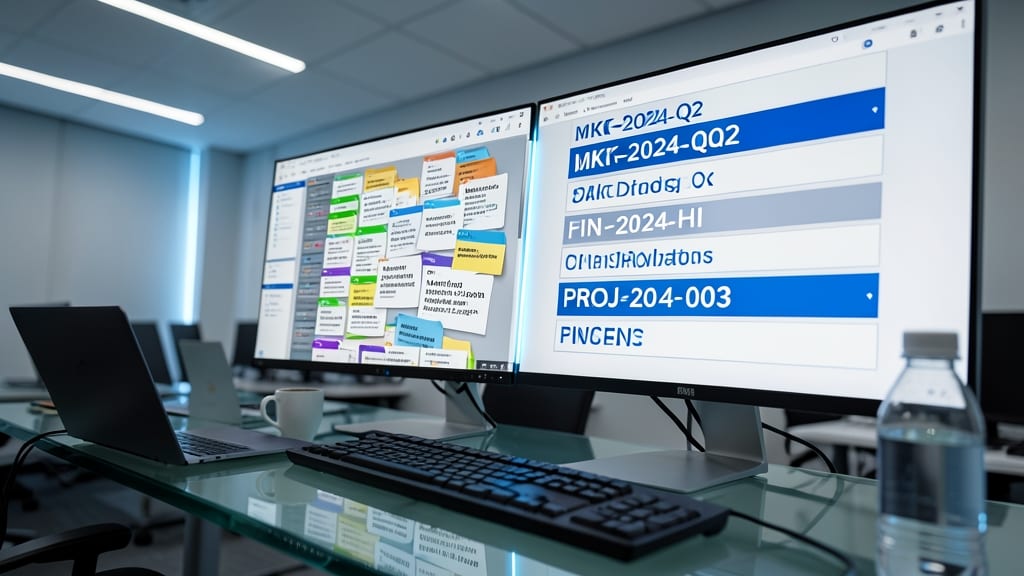
Shared drives can turn into chaotic messes when everyone uses their own naming style—but standardized project-code descriptors solve that instantly. By prefixing files with codes like MKT-2024-Q2 (marketing quarter 2), teams instantly know the project context without opening the file.
This system works with department abbreviations (e.g., DEV-2024-01 for development) or client codes (CLNT-ABC-123), ensuring files stay organized even when shared across OneDrive or SharePoint. The consistent structure also simplifies search queries and filters—no more scrolling through "FinalFinalV2_Draft" files.
Perfect for agencies, IT teams, or marketing departments where multiple projects overlap. It’s the secret weapon behind battle-tested setups. ⚡
Version Control with Suffix Numbers

Tired of losing your latest edits when "saving over" the previous version? The suffix numbering system (v2, v3) acts as a digital safety net for documents that evolve—like contracts, design files, or financial reports.
Start with a base name (e.g., ContractDraft) and append v1 for the first version. Each revision increments the number (v2, v3), ensuring no overwrites. Microsoft Office’s built-in File History and Track Changes integrate seamlessly with this method, making rollbacks effortless.
This is your best bet for legal teams, designers, or freelancers juggling client revisions. A single glance at LogoDesignv5.ai vs. LogoDesignv6.ai tells you exactly which is the latest—no confusion, no lost work. ✨
File Type Extensions for Clarity
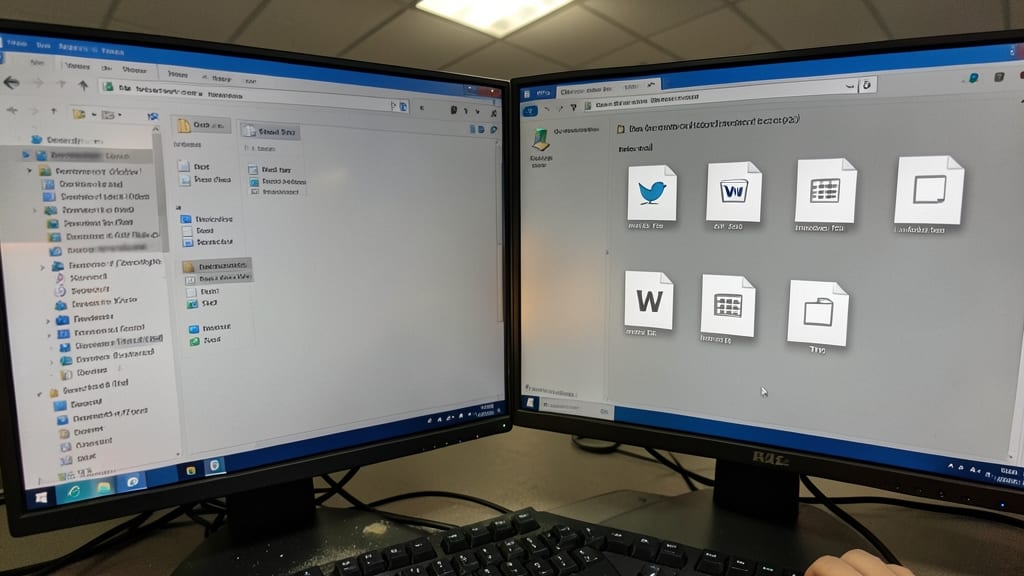
Windows hides known file extensions by default, turning InvoiceFinal.pdf into just InvoiceFinal—a recipe for confusion when scanning folders. This tiny detail causes headaches when distinguishing between Word docs, PDFs, and other formats, especially in shared drives where team members might not recognize the icon alone.
Always include the full extension (e.g., ProposalFinal.docx instead of just ProposalFinal) to eliminate ambiguity. This practice also prevents accidental overwrites—double-clicking a file without an extension might open the wrong app. For extra clarity, use lowercase extensions (e.g., .pdf, .xlsx) to avoid case-sensitivity issues across platforms.
This rule is non-negotiable for Windows users who frequently share files with others or rely on File Explorer’s "Details" view. It’s especially useful when working with clients or colleagues who may not have the same file associations configured. ✨
Underscores Over Spaces for Scripts

Ever hit "Enter" in Command Prompt only to see "'file' is not recognized" because of a sneaky space in your filename? For scripts—especially .bat and PowerShell files—spaces are the enemy. Microsoft’s legacy systems still choke on them, and modern scripts often fail silently when parsing filenames with spaces.
Swap spaces for underscores () in script filenames (e.g., BackupData_v2.bat instead of Backup Data v2.bat). This ensures zero config errors during execution, works flawlessly across Windows versions (even XP-era systems), and keeps your scripts compatible with older automation tools. Underscores also play nice with command-line arguments and scripting languages like Python or PowerShell.
This rule is non-negotiable for IT admins, developers, and automation enthusiasts running legacy systems. ⚡
Client-Specific Naming for Consultants
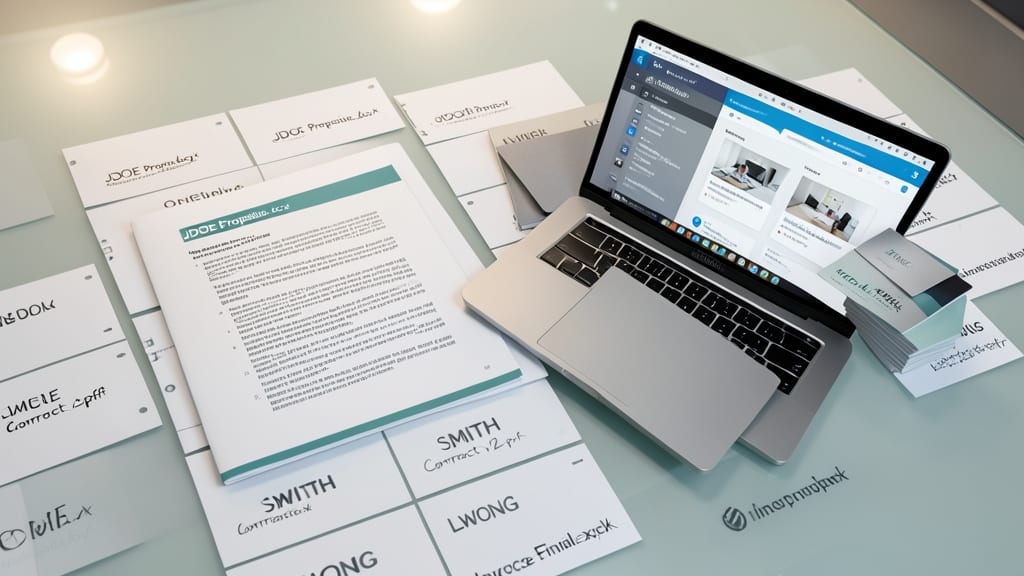
Juggling multiple client projects? A client-specific prefix (like JDOEProposal.docx) instantly organizes your work by account—no more digging through folders to remember who owns which file. This system works seamlessly with Microsoft OneDrive and SharePoint, where client folders can mirror the same naming structure.
Start with 2-3 capitalized initials (e.g., SMITHInvoice_Final.pdf) to ensure quick visual scanning. Use underscores instead of spaces to avoid issues in Windows scripts or shared drives. For agencies, this method syncs perfectly with client portals like HubSpot or Salesforce, where files are often attached directly from your local storage.
Freelancers and agencies handling 5+ clients will save hours weekly by eliminating the "Which client was this for?" guesswork. Pair this with version suffixes (from Item #3) for a foolproof system. 💻
Emoji and Symbol Shortcuts for Quick Recognition
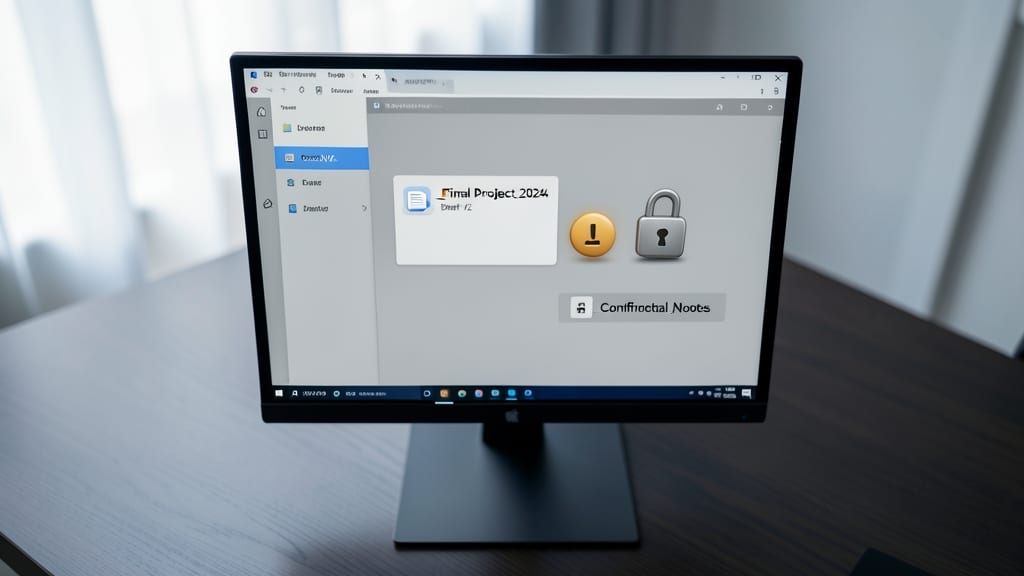
Tired of scanning folders full of similarly named files? Emoji and symbol shortcuts turn your file explorer into a visual command center—think 📄Final or ⚠️Draft instead of relying solely on text.
Windows 10/11 fully supports emojis in filenames (no special tools needed), and symbols like 🔒Confidential or ✅Approved instantly communicate status at a glance. Creative teams swear by this for quick visual filtering—just sort by name and let icons do the heavy lifting. Best of all, it works seamlessly with OneDrive and SharePoint for cloud-sharing.
Perfect for designers, marketers, or anyone drowning in drafts and revisions—where visual hierarchy beats strict naming rules every time. 🌟