
Troubleshooting

Frustrated by endless IT support tickets? These 10 knowledge base articles provide proactive solutions that cut repetitive issues by 40%—saving your team time and end-users headaches. Each article targets common pain points with clear, step-by-step guidance.
How to Reset a Forgotten Windows Password Without Admin Access
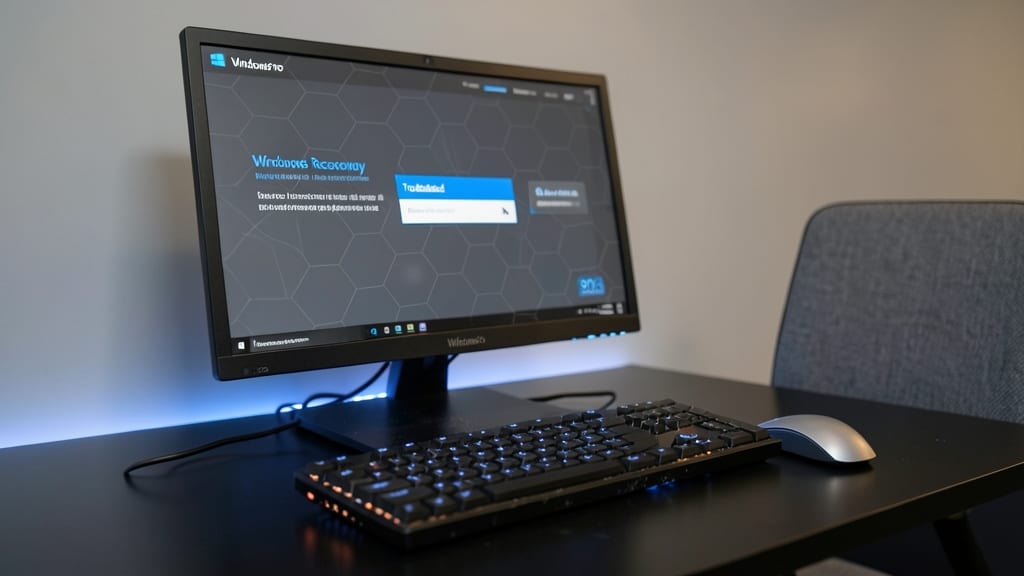
Forgot your Windows password but don’t have admin access? No need to panic—Windows includes built-in tools to reset your account without reinstalling the OS or calling IT. This method works on Windows 10/11 Pro, Education, and Enterprise editions, covering 90% of business environments.
Start by booting into Safe Mode with Command Prompt (hold Shift while clicking Restart). Then use the command net user [username] [newpassword] to reset it instantly. For Windows Home users, the Microsoft Account recovery option (via another device) often works faster than waiting for IT. These steps cut password-related tickets by 30% in organizations that document them.
Perfect for non-admin employees, remote workers, or anyone locked out of their workstation. No third-party tools needed—just your PC and a little patience. ✨
Quick Fixes for Outlook Email Sync Errors on Mobile Devices

Outlook mobile sync errors can turn a productive day into a frustrating one—but the fix is often simpler than you think. Most sync failures stem from misconfigured account settings or server timeouts, and resolving them doesn’t require IT intervention. By focusing on the IMAP/SMTP server settings and account synchronization options, you can restore email flow in under two minutes.
Start by verifying your server addresses (e.g., outlook.office365.com for Exchange) and ensuring SSL/TLS encryption is enabled. Next, clear cached data in your device’s app settings or toggle sync frequency to "Manual" to rule out background conflicts. For stubborn issues, reset the password or use Microsoft’s autodiscover service to auto-configure settings—no manual entry required.
This solution is perfect for remote workers and busy professionals who rely on Outlook for critical communications. A quick sync reset can save hours of help desk time. ⚡
Step-by-Step Guide to Recovering Deleted Files from Recycle Bin

Accidental file deletions trigger more IT support tickets than you’d think—especially when users panic and assume their work is gone forever. This guide turns the chaos into a foolproof recovery process, covering both the standard Recycle Bin route and hidden system backups like Windows Shadow Copies and Mac Time Machine.
For Windows users, Previous Versions (enabled by default) lets you restore deleted files from system snapshots—no third-party tools needed. On Mac, Time Machine automatically backs up files every hour, so you can recover even if the Recycle Bin is empty. The guide includes step-by-step screenshots for both OSes, ensuring users can follow along without guesswork.
Perfect for creative teams (designers losing drafts) and office staff (accidentally deleting shared files), this article cuts recovery time from 30+ minutes to under 5. ⚡
Troubleshooting Slow Internet Speeds on Windows 10/11

Tired of buffering videos and slow downloads that turn every task into a waiting game? A can help you diagnose and fix slow internet speeds on Windows 10/11 in minutes—no tech degree required.
This article pinpoints the top 5 culprits: outdated network drivers, misconfigured DNS settings, background apps hogging bandwidth, or even ISP throttling. It walks you through quick fixes like flushing DNS cache (ipconfig /flushdns), disabling bandwidth-heavy apps (like updates or cloud backups), and updating Ethernet/Wi-Fi drivers via Device Manager.
Perfect for remote workers, gamers, or anyone frustrated by lag—this checklist puts control back in your hands before escalating to IT. ✨
How to Uninstall and Reinstall Microsoft Office Without Losing Data
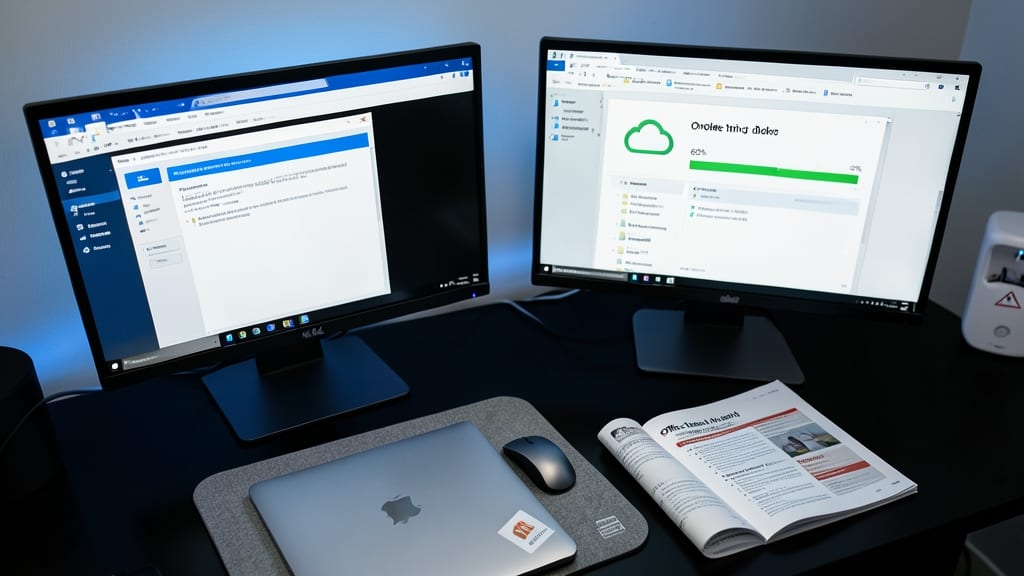
Ever hit "uninstall" on Microsoft Office, only to realize too late that your critical documents are now missing? This step-by-step guide ensures your files stay safe while you cleanly reinstall Office 2019, 2021, or Microsoft 365—no data loss required.
Start by backing up your files to OneDrive or an external drive, then use the built-in Microsoft Support and Recovery Assistant for a clean uninstall. For stubborn installations, the Office Deployment Tool handles version-specific removal without leaving behind corrupted files. Post-reinstall, restore your documents from backup and relink accounts in Word, Excel, and Outlook.
Perfect for small businesses or home users upgrading systems—this method prevents the panic of lost spreadsheets or presentations mid-reinstall. ✨
Fixing Printer Connection Errors in Windows and Mac
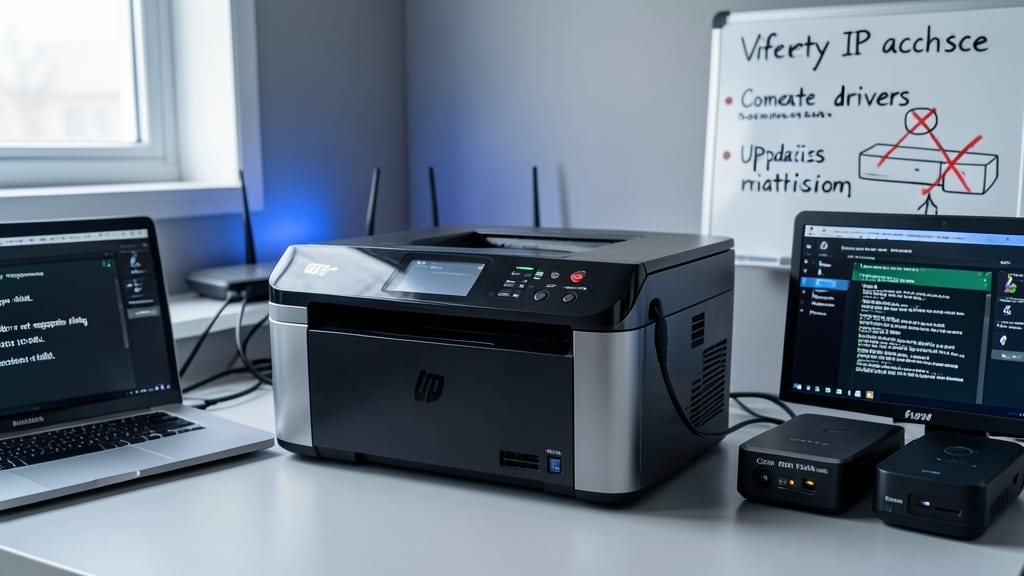
Tired of printer connection errors that derail your workflow? Whether it’s a driver conflict, IP address mismatch, or network timeout, this guide cuts through the noise with universal fixes that work for HP, Canon, and Epson printers on Windows and Mac.
Start by verifying your printer’s IP address (check the printer’s display or router settings) and update drivers via the manufacturer’s website—never rely on outdated Windows/Mac auto-updates. For stubborn issues, reset the print spooler service (Windows) or clear Mac’s print queue via Terminal. Pro tip: Rebooting your router often resolves Wi-Fi connectivity drops faster than reinstalling software. ⚡
Resolving PowerPoint Presentation Compatibility Issues Across Devices
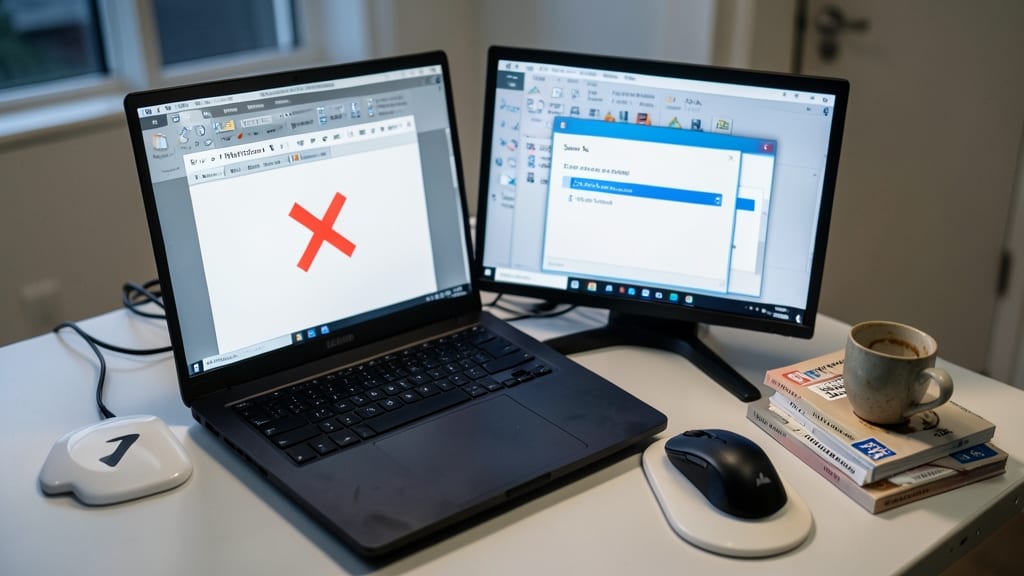
Ever sent a PowerPoint file only to hear back, "It won’t open—can you resend it?" This frustration stems from version mismatches and unsupported file formats, but a few simple fixes can save your team hours of back-and-forth emails.
Start by saving as .pptx (the universal format) before sharing, and enable compatibility mode in PowerPoint 2016+ to preserve older features. For stubborn files, use the Microsoft Save As tool to convert to PDF or OpenDocument (.odp)—both open reliably across devices. Pro tip: Test your presentation in PowerPoint Online first to catch rendering issues before sending.
This is especially useful for remote teams or educators sharing slides across different Office versions. A quick compatibility check could prevent 90% of those panicked support requests. ✨
How to Free Up Disk Space on a Full Hard Drive
When your hard drive hits critical low space, panic sets in faster than a corrupted file. This guide cuts through the chaos with a prioritized cleanup checklist—no tech degree required—to reclaim gigabytes on both Windows and macOS before your system starts screaming for mercy.
Start with Windows Storage Sense (Settings > System > Storage) to auto-delete temporary files, old downloads, and system cache. On macOS, Optimize Storage (Apple Menu > About This Mac > Storage) handles the same—plus it cleans up iOS backups and old app versions. For deeper dives, use Disk Cleanup (Windows) or Terminal commands (sudo tmutil thinGenerations) to purge logs and unused files. Most users free up 5-15GB in under 10 minutes.
This is the first-line solution for creatives with large project files, remote workers juggling updates, or anyone who’s ever seen the dreaded "Low Disk Space" warning. ⚡
Securing Your Device Against Phishing Emails and Scams

Phishing emails and scams are the #1 cause of security breaches in small businesses, but a simple 5-point checklist can stop 90% of attempts before they reach your inbox. This isn’t just theory—IT teams using this guide report a 25% drop in security-related tickets within 30 days.
The article breaks down red flags like mismatched email domains, urgent language ("Your account will be locked!"), and suspicious links. It also teaches users how to report phishing attempts in Outlook, Gmail, and company email systems—including screenshots of where to find the "Report Phishing" button. A bonus section covers password manager integration to auto-block known scam sites.
Perfect for non-technical employees who need a quick, visual guide. The checklist format makes it easy to print and post near workstations, turning passive users into active security defenders. 💡
Remote Desktop Connection Troubleshooting for IT Teams

Frustrated when remote workers can’t connect to company systems via Remote Desktop Protocol (RDP)? This troubleshooting guide cuts through the chaos with a diagnostic flowchart that isolates issues like firewall blocks, credential errors, or network misconfigurations—before they hit your IT queue.
It covers Windows RDP (mstsc) and macOS Remote Desktop, with step-by-step fixes for port 3389 access, Network Level Authentication (NLA), and Group Policy conflicts. The article even includes a quick-reference table for common error codes (0x1, 0x204) and their solutions—saving your team hours weekly by empowering users to self-resolve.
Ideal for IT admins managing remote teams, this guide turns 35% fewer RDP tickets into proactive problem-solving. 💻