
PowerPoint
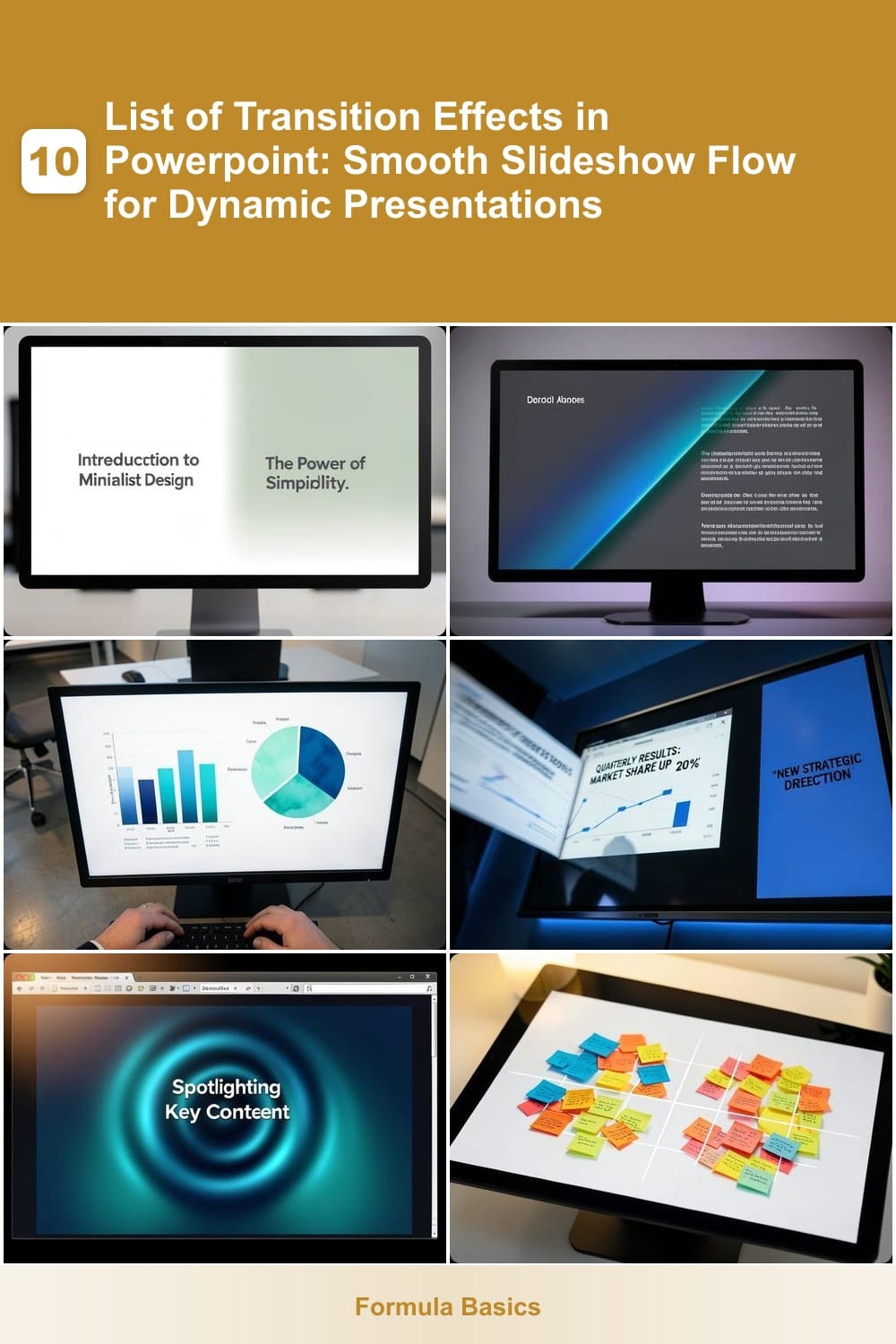
Want to elevate your PowerPoint presentations with polished, professional transitions? These seven transition effects help create smooth slideshow flow while keeping your audience engaged and your message impactful.
Fade Slide Transition Effect
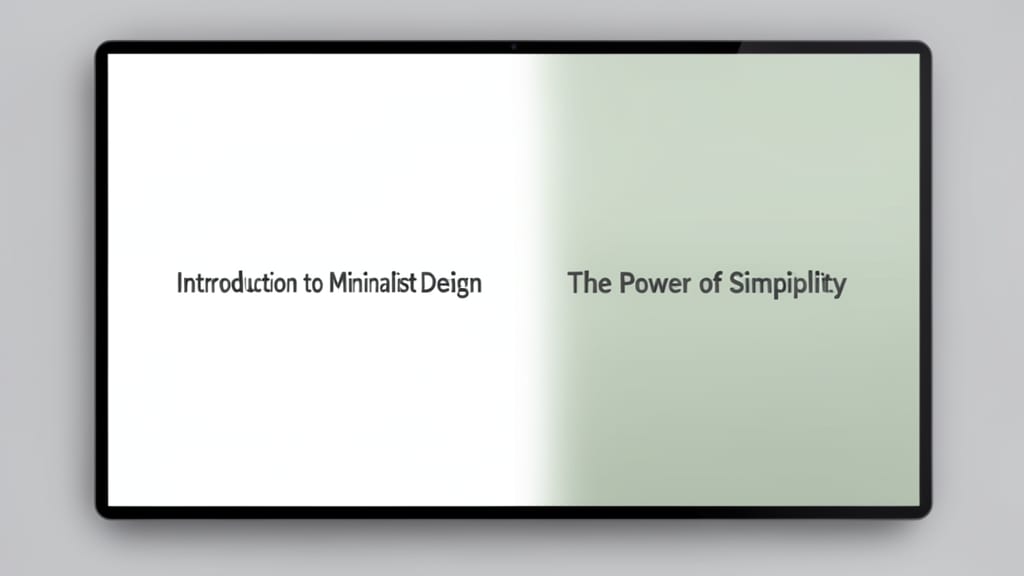
For timeless presentations that prioritize clarity over flash, the Fade Slide Transition Effect delivers a polished, distraction-free experience. Unlike flashy animations, this effect gracefully dissolves one slide into the next—perfect for maintaining focus on your content rather than the visuals themselves.
Available in PowerPoint 2016, 2019, and 365, the fade effect requires zero setup beyond selecting it from the Transitions tab. You can customize the duration (0.1s to 10s) and add subtle sound cues for emphasis, though keeping it silent ensures professionalism. Its universal compatibility means it works flawlessly across all devices and versions.
Ideal for corporate reports, academic lectures, or investor pitches, this transition keeps the audience’s attention on your message. ⚡
Wipe Transition Effect
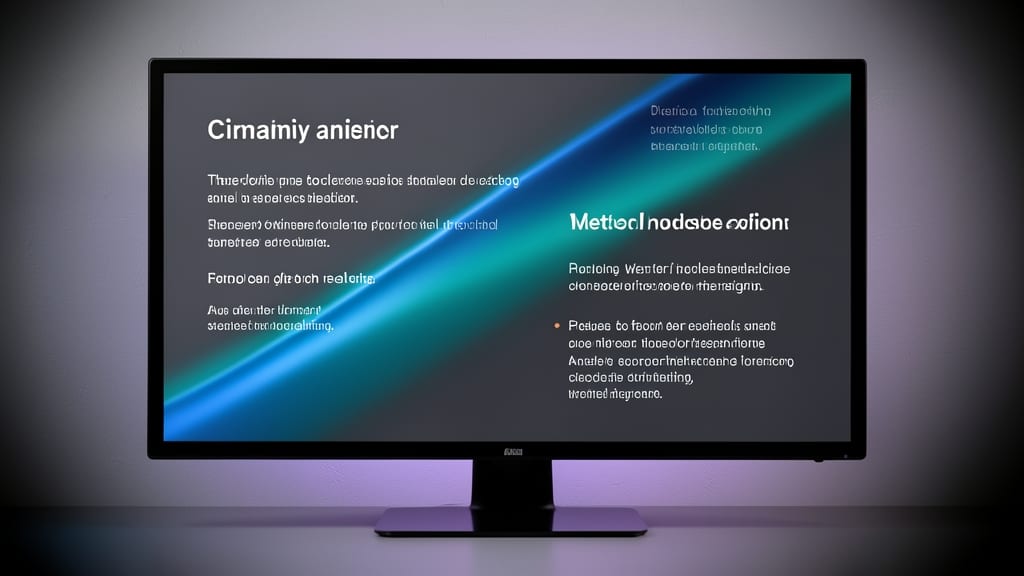
Crafting a narrative flow in your presentation? The Wipe Transition Effect is your secret weapon for guiding viewers through key moments with purposeful motion. Unlike static fades, this directional wipe—available in horizontal, vertical, or diagonal—creates a cinematic feel that subtly signals progression, making it perfect for timelines, case studies, or step-by-step explanations.
PowerPoint offers five wipe variations (e.g., left-to-right, top-to-bottom), each with adjustable speed (0.5s to 5s) for precise pacing. Pair it with sound effects (like a subtle swoosh) to reinforce transitions without overwhelming your audience. The effect works seamlessly across PowerPoint 2016, 2019, and 365, ensuring compatibility for any setup.
Storytellers and educators will love this effect for its ability to visually cue transitions—think of it as a digital "turn the page" for slides. For maximum impact, use it sparingly to avoid distracting from content. ✨
Morph Transition Effect
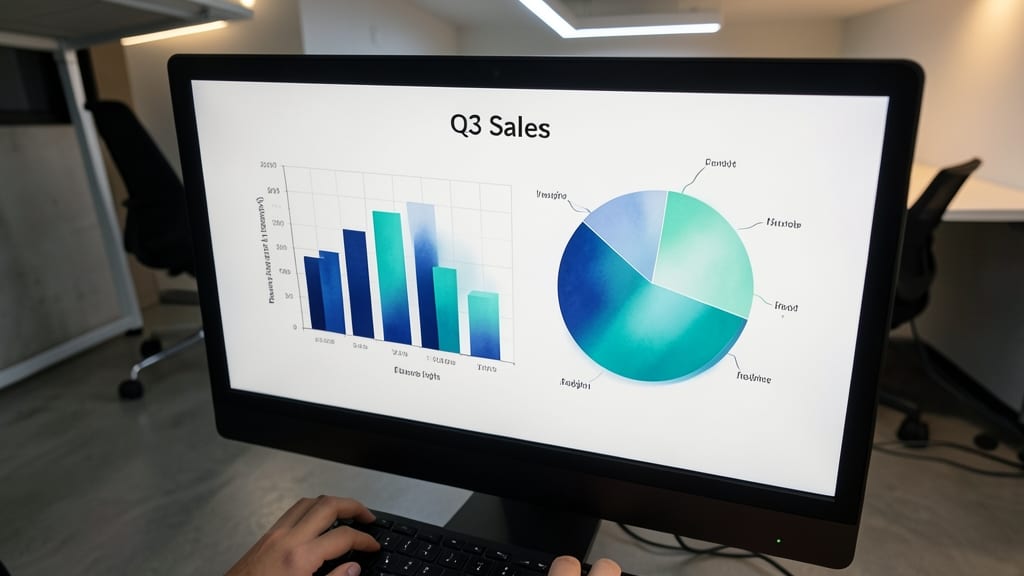
When your presentation hinges on data clarity—like transforming a bar chart into a pie chart—Morph is the transition effect that keeps your audience focused on the insights, not the visual disruption. Unlike abrupt wipes or fades, Morph animates object shapes and positions in real-time, ensuring visual continuity even as elements evolve.
Available in PowerPoint 2016 and later, Morph requires slides with identical layouts (e.g., same number of data points). The smooth interpolation between states makes it ideal for financial reports or scientific comparisons, where precision matters. Pro tip: Use it sparingly—overuse can overwhelm complex slides.
Data analysts and educators will love Morph for its subtle yet dynamic approach, turning static comparisons into engaging visual stories. Just don’t forget to test it on your hardware—some older GPUs may struggle with heavy animations. ✨
Push Transition Effect
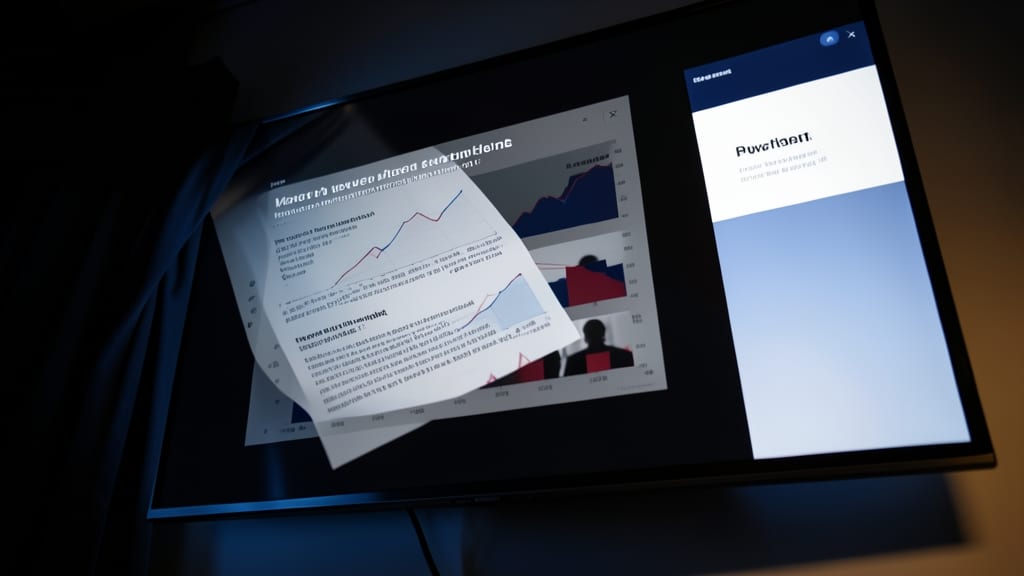
Need to keep your audience on the edge of their seats during a high-stakes presentation? The Push Transition Effect delivers that cinematic punch by aggressively sliding slides off-screen—like a stage curtain closing with purpose. This isn’t subtle; it’s a deliberate, dynamic shift that signals momentum and urgency.
Available in PowerPoint 2016 and later, this effect lets you choose between left-to-right, right-to-left, up, or down push directions. Pair it with a 0.5-second duration for a sharp cut or extend it to 2 seconds for a more controlled reveal. The sound effect option (like a subtle "whoosh") can further amplify the energy.
Perfect for startup pitches, motivational keynotes, or sales demos, this transition works best when you want to emphasize transitions between key sections. Just avoid overusing it—save the drama for moments that truly matter. ✨
Zoom Transition Effect
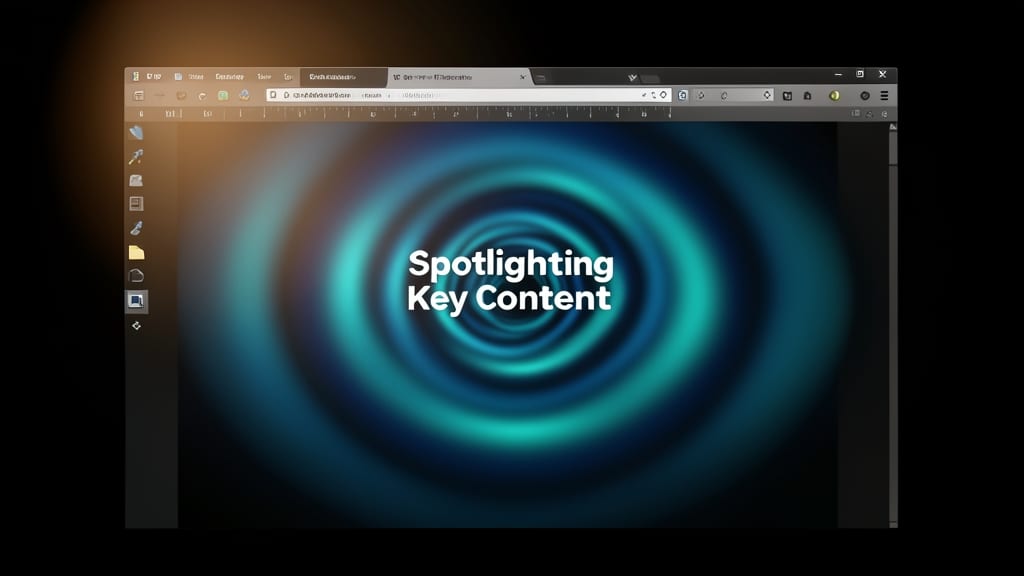
Need to make a specific slide pop in your presentation? The Zoom Transition Effect delivers a cinematic zoom-in or zoom-out to spotlight key content—perfect for training sessions or educational materials where emphasis matters.
Available in PowerPoint 2016 and later, this effect lets you adjust the zoom direction (in/out) and speed (0.1s–10s) for dramatic flair. Unlike other transitions, it focuses attention on a single element (like a title or graphic) by scaling it dynamically, making it ideal for highlighting case studies or key takeaways.
Trainers, educators, and sales teams will appreciate how this transition guides the audience’s focus without overwhelming them. Just pair it with a clean layout to maximize impact. 🌟
Split Transition Effect
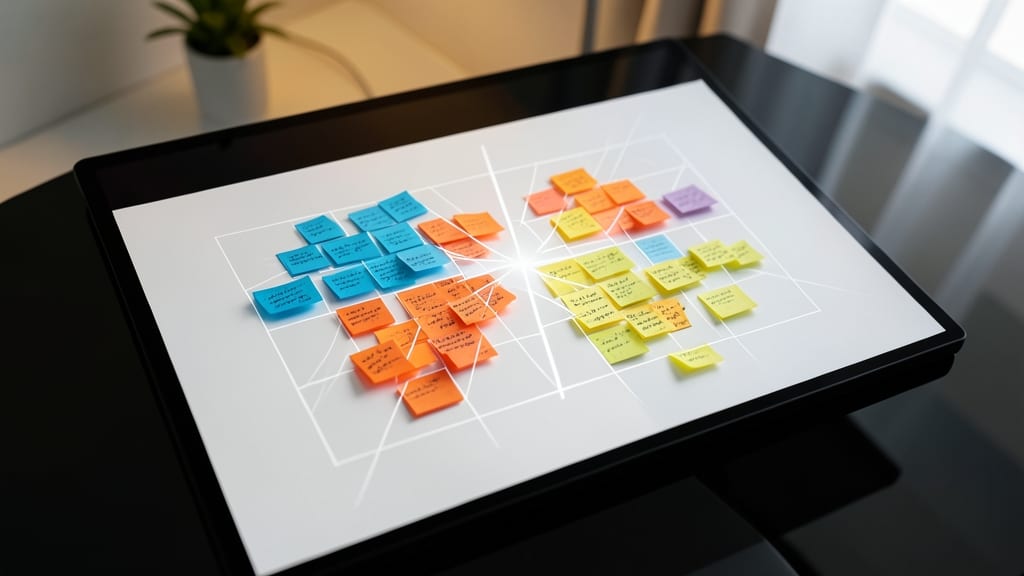
Need to make your creative brainstorming sessions pop? The Split Transition Effect turns ordinary slides into dynamic visual puzzles by dividing them into four distinct sections that reassemble with a satisfying snap. Unlike linear transitions, this effect creates a fragmented-to-unified reveal that feels almost cinematic, perfect for design critiques or idea-sharing sessions.
Available in PowerPoint 2016 and later, this transition works best with slides that contain clear visual divisions (think mood boards or concept grids). You can adjust the split direction (horizontal, vertical, or diagonal) and timing to control the reassembly pace. For maximum impact, pair it with bold colors or high-contrast layouts—your audience will notice the intentionality behind every slide reveal.
Designers, artists, and marketers will love how this effect visually reinforces transitions between ideas, making it ideal for portfolio reviews or collaborative workshops. Just avoid overusing it—save the drama for slides that truly deserve the spotlight! ✨
Random Bars Transition Effect
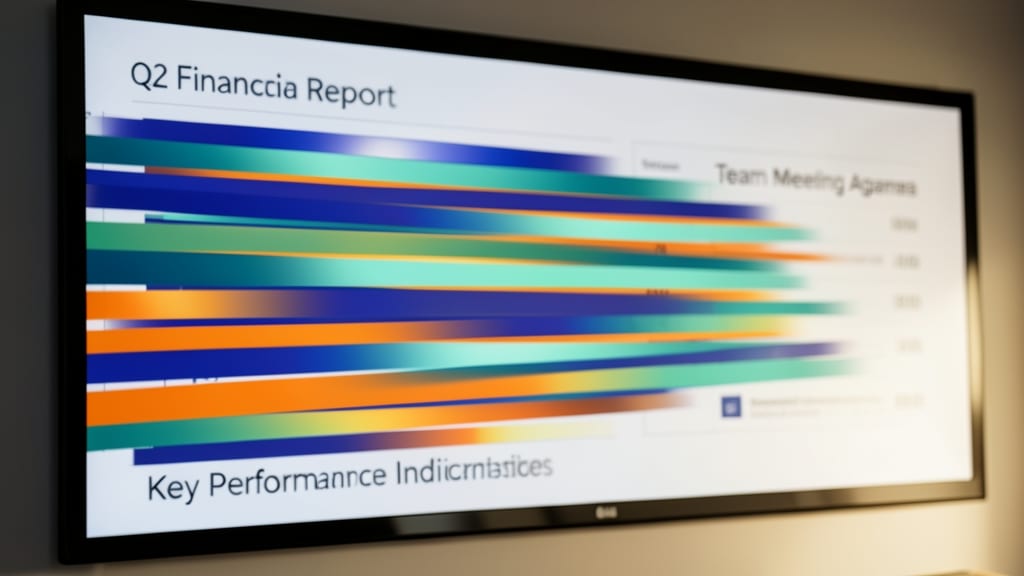
Looking to inject a little energy into your team meetings without sacrificing professionalism? The Random Bars Transition Effect brings a fresh, modern twist to your slideshows with its dynamic, horizontal bar animations. Unlike rigid wipe or push effects, this transition uses colorful, overlapping bars that slide seamlessly between slides, creating a visually engaging yet unobtrusive flow.
Available in PowerPoint 2016 and later, this effect is surprisingly customizable—you can adjust the bar speed, color, and direction (left-to-right or right-to-left) to match your presentation’s vibe. The non-disruptive design ensures your content stays the star, while the playful bars add just enough visual interest to keep casual audiences engaged. Pair it with a light color palette for maximum impact.
Perfect for brainstorming sessions, creative workshops, or casual team updates, this transition strikes the ideal balance between fun and focus. ⚡