
Software
Microsoft Edge is packed with hidden features that can transform your browsing experience—from lightning-fast navigation to seamless productivity tools. These seven tips will help you unlock Edge’s full potential and work smarter every day.
Enable Immersive Reader for Focused Reading
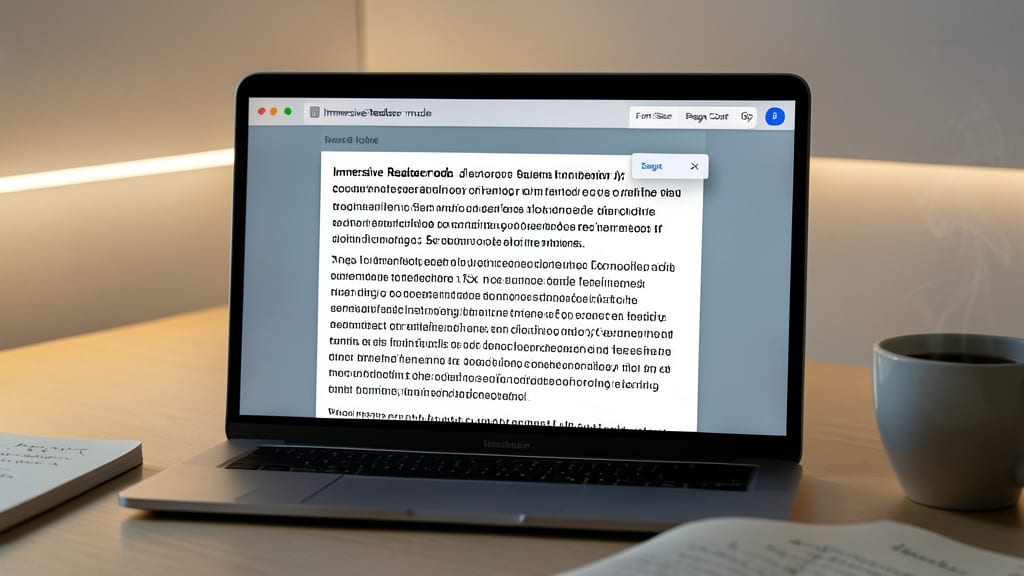
Struggling to focus while reading lengthy articles or documents? Microsoft Edge’s Immersive Reader transforms your screen into a distraction-free zone with customizable fonts, line spacing, and color themes—perfect for deep work sessions.
To enable it, open any webpage, click the three-dot menu in the top-right corner, and select Immersive Reader. You’ll instantly see a high-contrast layout with adjustable text size, spacing, and even a read-aloud feature for hands-free learning. The tool also highlights each word as it’s read, improving comprehension.
This feature is a game-changer for students, researchers, and professionals drowning in digital clutter. Try it the next time you’re tackling a dense report or textbook—your eyes (and productivity) will thank you. ✨
Customize Startup Pages with Collections
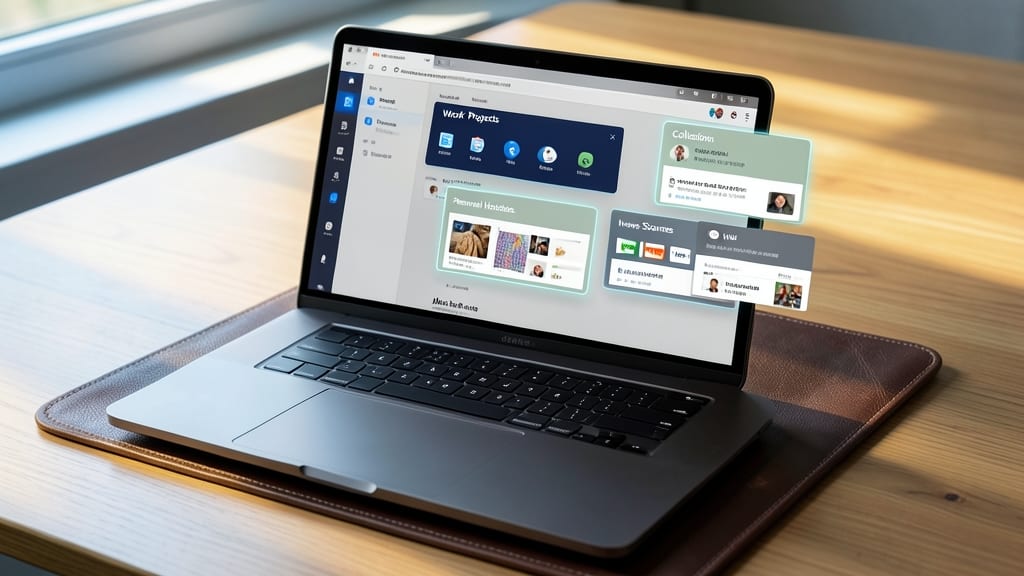
Tired of scrolling through a messy New Tab page every morning? Microsoft Edge’s Collections feature lets you group tabs by theme—like work projects, personal hobbies, or news sources—and pin them for one-click access. This is your digital command center, tailored to how you actually use the web.
To get started, open Edge, click the three-dot menu in the top-right, and select Collections. Name your group (e.g., "Tech Research"), drag tabs into it, and pin it to your New Tab page. Collections sync across devices, so your work setup follows you from laptop to phone. Need a quick switch? Just click the pinned collection to load all tabs instantly.
Perfect for freelancers juggling clients, students balancing coursework, or anyone drowning in tabs. Organize your chaos in minutes—no more tab overload! ✨
Use Vertical Tabs for Better Organization
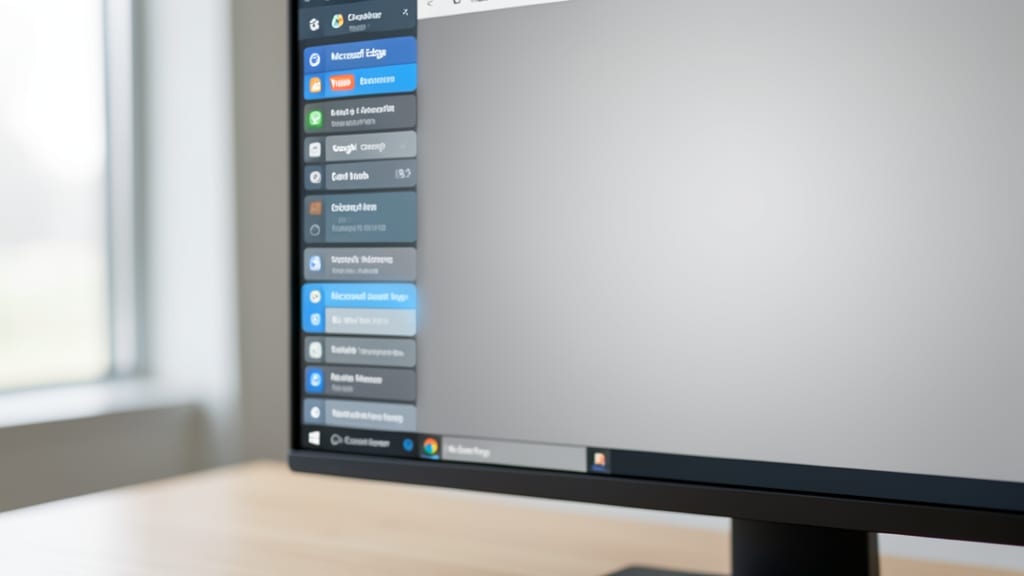
If you’re drowning in open tabs and your taskbar looks like a digital junk drawer, Microsoft Edge’s vertical tabs feature is your lifeline. This sleek, space-saving layout stacks tabs vertically along the left side of your screen, turning chaos into clean, organized rows.
To enable it, open Edge’s settings (click the three-dot menu > Settings > Appearance), then toggle "Show vertical tabs" under the "Tabs" section. With this setup, you can scroll through dozens of tabs without losing sight of your current page—ideal for researchers, developers, or anyone juggling multiple projects. The compact sidebar also keeps your taskbar decluttered, making multitasking smoother than ever.
Perfect for users with narrow screens or those who prefer minimalism, vertical tabs are a game-changer for productivity. Give it a try and reclaim your digital workspace! ✨
Leverage Edge’s Built-In Password Manager
Tired of juggling passwords across devices or relying on sketchy third-party managers? Microsoft Edge’s built-in password manager is your all-in-one solution—secure, syncable, and packed with convenience for online shoppers and frequent logins.
With zero-configuration sync across Windows, macOS, iOS, and Android, your passwords auto-fill in seconds while staying encrypted with Microsoft’s enterprise-grade security. No more typing the same password repeatedly—just tap to log in. The manager also flags weak passwords and suggests stronger ones, keeping your accounts safer than ever.
Perfect for frequent shoppers or anyone with multiple accounts, this tool eliminates the hassle of third-party risks while keeping your data private. No extensions or extra apps needed—just built into Edge. ✨
Speed Up Browsing with Reading Mode
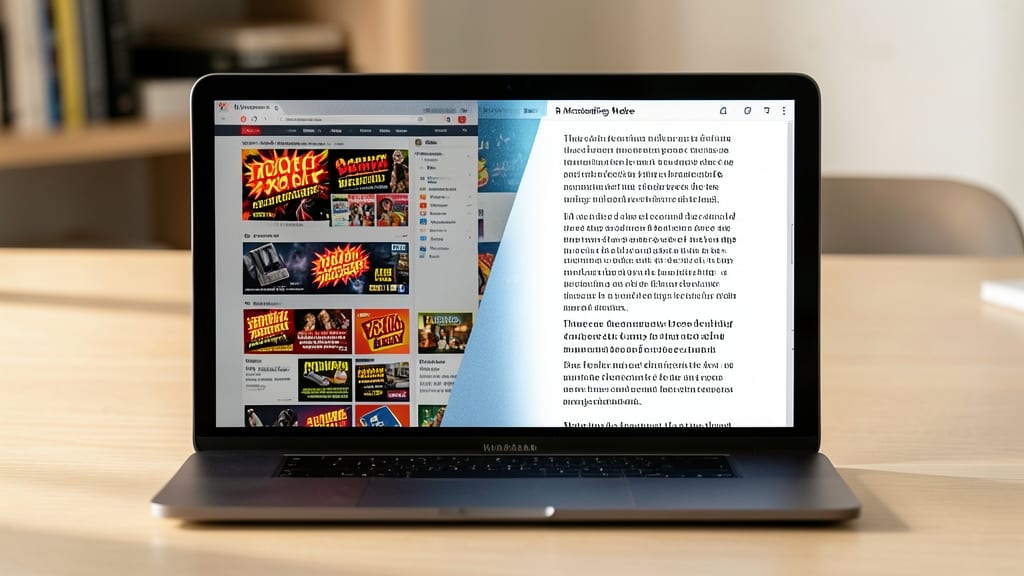
Drowning in ads and pop-ups while trying to research? Microsoft Edge’s Reading Mode is your secret weapon—it instantly transforms cluttered web pages into clean, distraction-free layouts with just one click.
With a single tap, it removes ads, sidebars, and unnecessary elements, leaving only the article’s core text in a crisp, easy-to-read format. You can also adjust font size and line spacing for comfort, or even have the page read aloud using Edge’s built-in text-to-speech feature—perfect for long-form articles or multitasking.
This is a game-changer for researchers, writers, and professionals who spend hours reading dense content. Try it on news sites, academic papers, or even Wikipedia for a smoother, faster experience. ✨
Integrate Microsoft 365 for Seamless Workflows
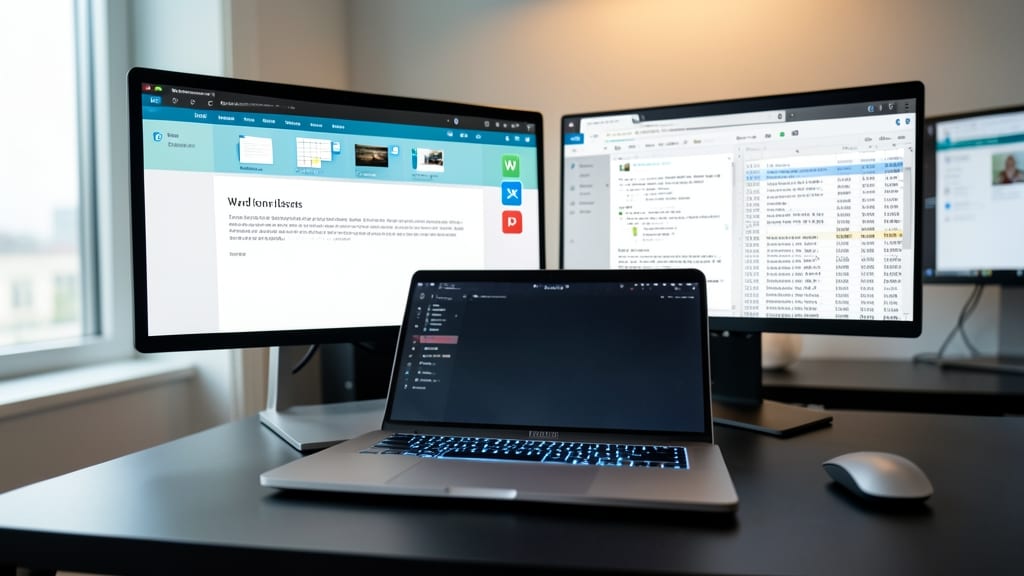
Tired of toggling between Edge and Microsoft 365 apps to edit documents? Edge’s native Office integration lets you open, edit, and save Word, Excel, and PowerPoint files directly in your browser—no app-switching required.
With this feature, you get full access to the Microsoft 365 ribbon toolbar (including formatting tools and formulas in Excel) and automatic cloud sync via OneDrive or SharePoint. Changes save instantly, and real-time co-authoring lets teams collaborate without emailing file versions back and forth.
Perfect for remote workers or freelancers juggling multiple tasks—this is the ultimate time-saver for anyone who spends hours in Office apps. ✨
Enable Dark Mode for Reduced Eye Strain

Late-night coding sessions or early-morning news checks shouldn’t strain your eyes. Microsoft Edge’s Dark Mode reduces blue light exposure by up to 30% while cutting battery drain on laptops by automatically dimming the screen’s backlight.
Enable it in Settings > Appearance with a single toggle—no extensions needed. The dark theme also works seamlessly with Windows 11’s system-wide dark mode, ensuring consistency across all your apps. For extra comfort, pair it with Night Light (Windows) or Night Shift (Mac) for warmer tones.
Perfect for developers, night owls, or anyone with light sensitivity—your eyes (and battery) will thank you. ✨