
Software
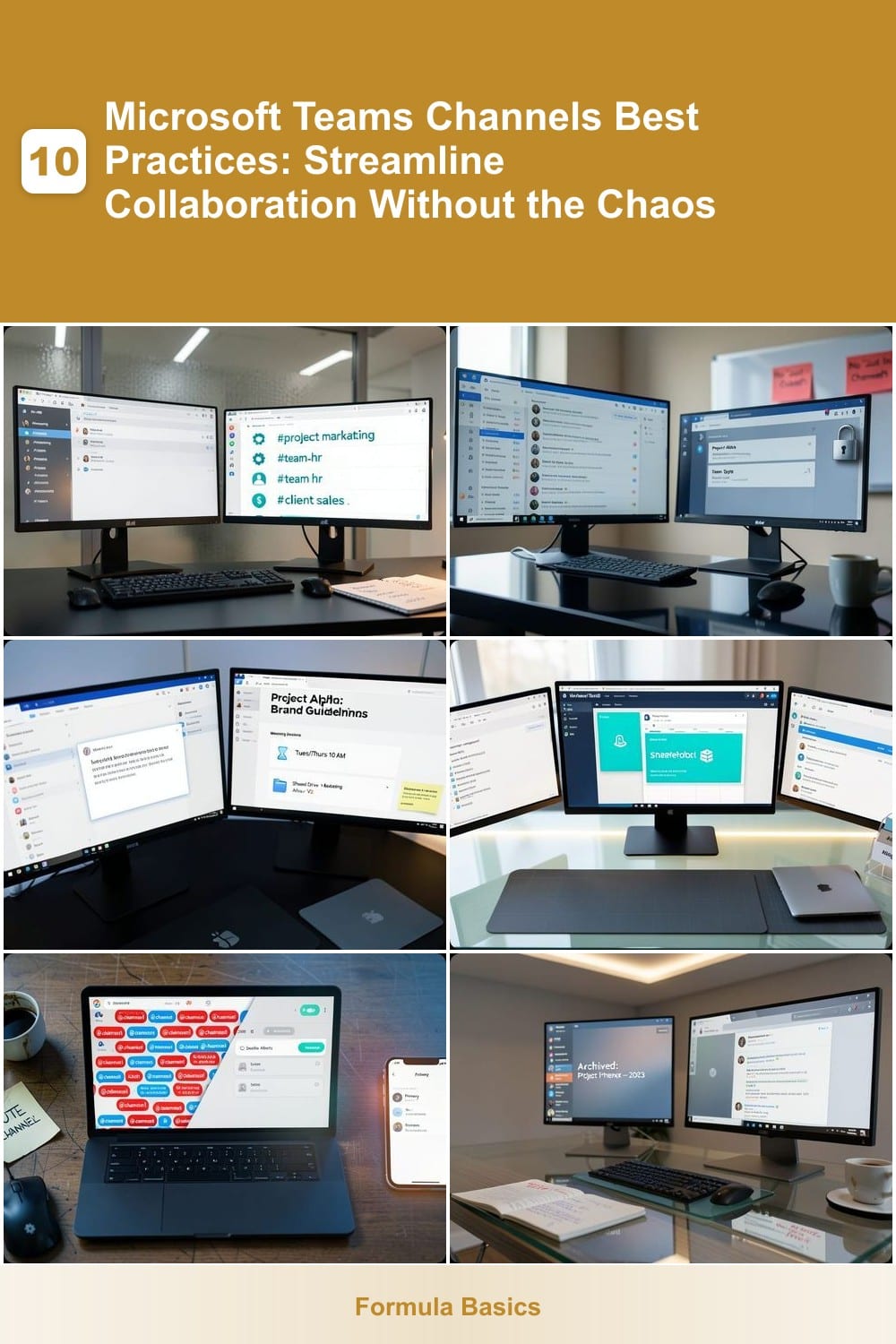
Microsoft Teams channels can become cluttered or underutilized without the right approach. These 10 best practices will help you organize teamwork efficiently, reduce noise, and maximize productivity in your workspace.
Standardize Channel Naming Conventions for Clarity
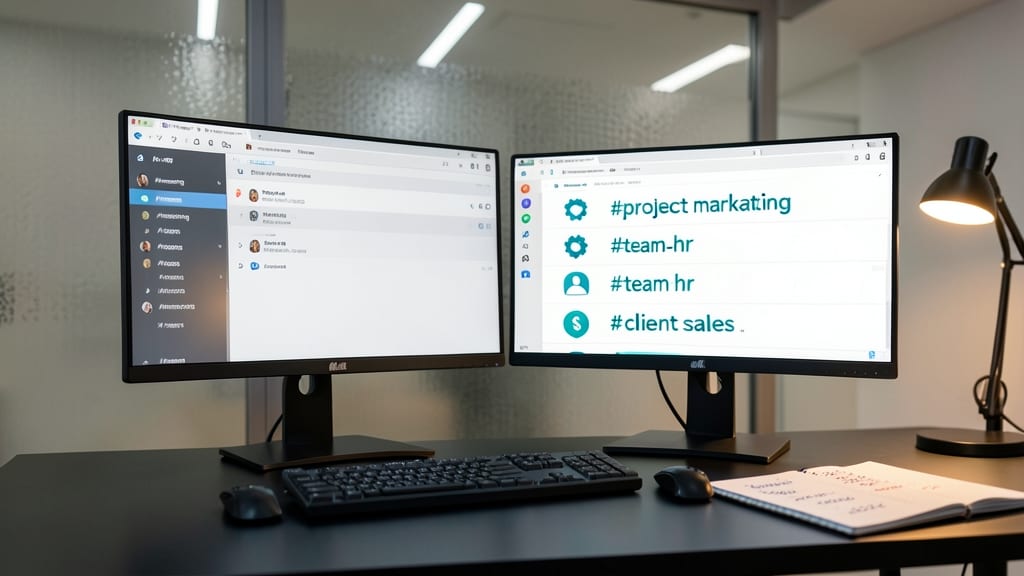
Struggling to find the right channel in a sea of generic names like #meeting or #docs? A standardized naming system turns your Teams sidebar into an intuitive map—no more second-guessing where to post updates. Start with clear prefixes like #project- (for initiatives) or #team- (for departments), followed by descriptive keywords like #project-marketing-campaign or #team-hr-onboarding.
This approach works because visual scanning becomes effortless—your brain recognizes patterns instantly. For example, #project- channels might use green themes while #team- channels use blue, reinforcing the hierarchy. Microsoft Teams even lets you sort channels alphabetically, so #project- groups appear together. Pro tip: Document your naming rules in a shared Teams channel (like #team-admin) to keep everyone aligned.
Perfect for large teams, remote organizations, or cross-functional projects where clarity cuts decision fatigue. With consistent naming, your team spends less time searching and more time collaborating. ✨
Limit Channel Creation to Essential Teams Only
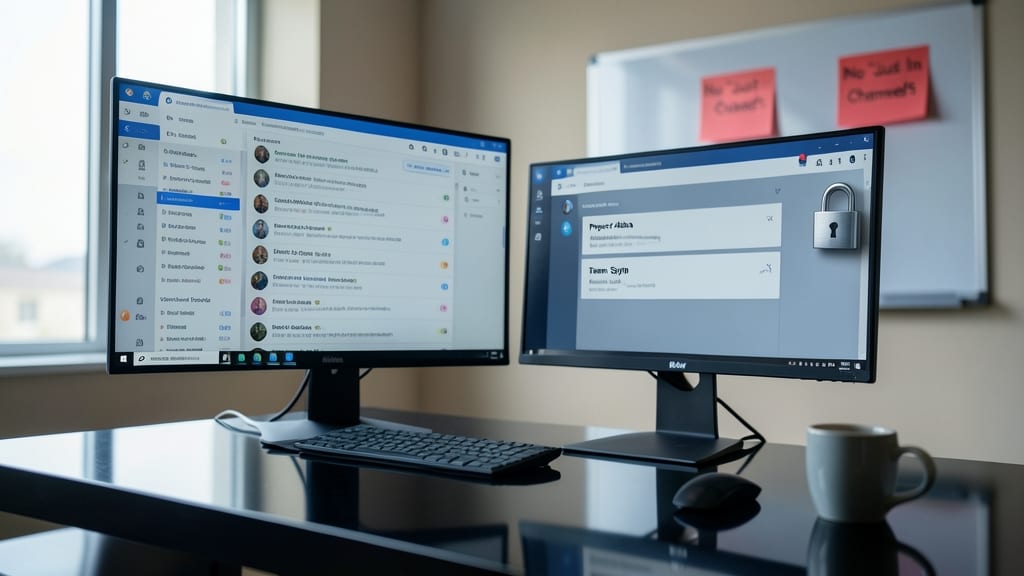
Struggling to find important channels buried under a mountain of unused ones? The solution isn’t deleting—it’s preventing the clutter in the first place. By restricting channel creation to team admins only, you eliminate the "just in case" channels that accumulate over time, keeping your workspace focused and efficient.
In Microsoft Teams, admins can control creation rights by navigating to Team settings > Member permissions and toggling "Allow members to create channels" to Off. This ensures only approved channels exist, reducing decision fatigue and making critical discussions stand out. For large teams, consider a two-tiered approach: grant creation rights to department leads while keeping full control at the admin level.
This strategy works best for growing teams or remote organizations where unchecked channel creation leads to confusion. A lean workspace means faster navigation and fewer distractions—so your team can focus on what matters most. 💻
Use Channel Descriptions for Quick Reference
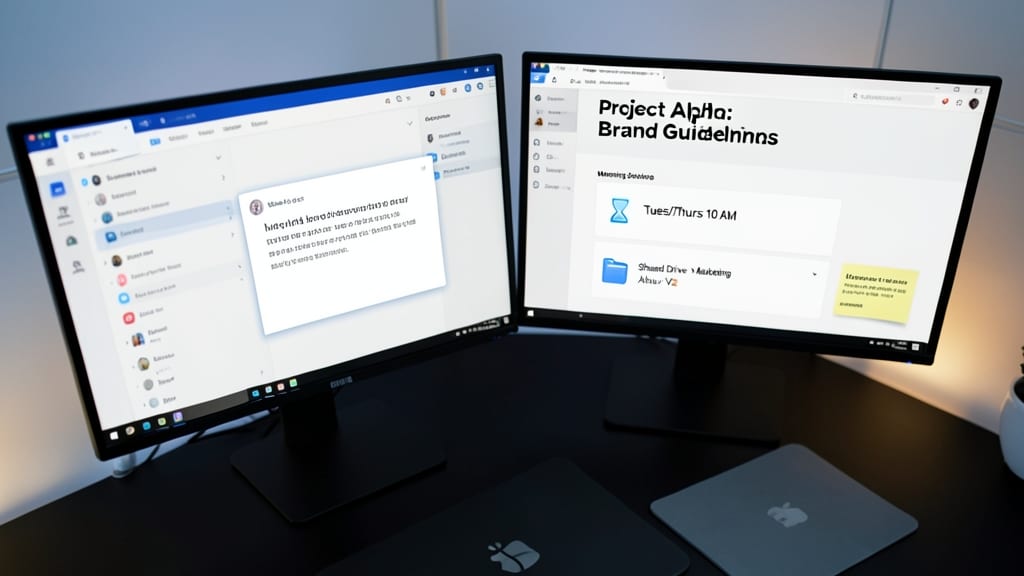
Ever scrolled through Microsoft Teams channels only to forget why you joined a specific one? A well-crafted channel description acts as your instant guide—saving time by clarifying purpose, ownership, and key details at a glance.
Include meeting schedules (e.g., "Tues/Thurs 10 AM"), document locations (e.g., "Project files in the 'Shared' tab"), or contact info (e.g., "Owner: Alex T."). Teams automatically displays this in the channel header, so no one wastes time searching for context. Pro tip: Use bullet points for readability—Microsoft Teams supports rich formatting here.
This is especially useful for remote teams or cross-department projects where context shifts frequently. A clear description turns a channel from a mystery into a self-documenting workspace. ✨
Organize Files with Folders and Tabs
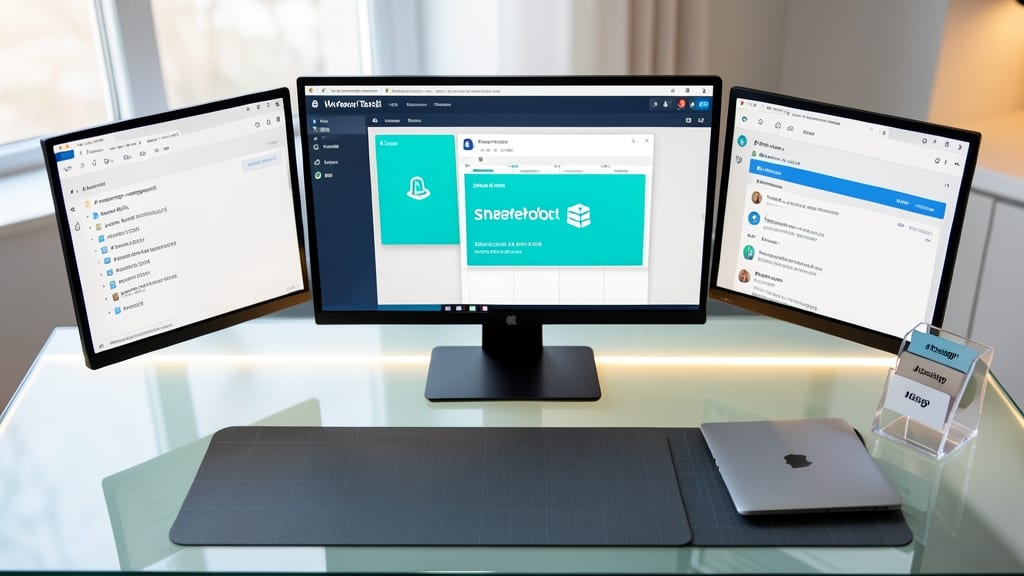
Tired of digging through endless files in Teams? A folder-and-tab system transforms file chaos into a structured, searchable workspace. Folders group project files logically (e.g., #marketing-campaign), while tabs pin essential tools—like OneNote planners or SharePoint links—right where you need them.
Microsoft Teams lets you create nested folders (up to 5 levels deep) and add custom tabs for quick access to apps, docs, or websites. For example, link a Power BI dashboard tab to your #analytics channel or embed a Google Drive folder for real-time collaboration. The built-in file preview feature lets you open PDFs or images directly in the tab without leaving Teams.
This setup is perfect for project managers juggling multiple deliverables or remote teams needing instant access to tools. Try it today—your future self will thank you for the zero-scrolling workflow. 💻
Set Up Channel Notifications Wisely
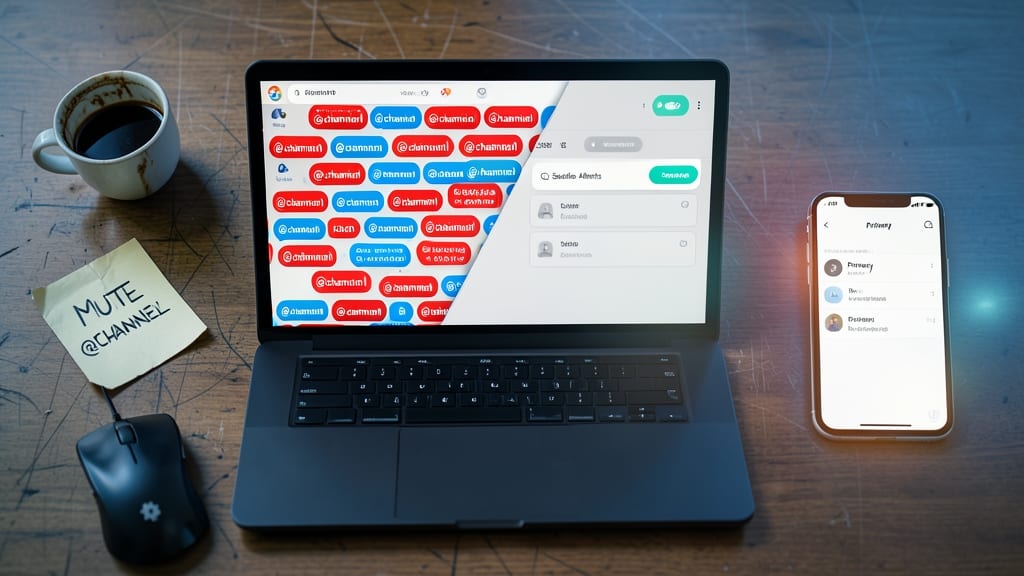
Drowning in Teams notifications? You’re not alone—@channel spam can turn your inbox into a chaotic mess. The fix? Strategic alert customization to keep only what matters front and center.
Start by adjusting your notification settings to mute all channels by default, then selectively enable alerts for critical discussions. Replace blanket @channel mentions with @here (alerts active users only) or @user (directs messages to one person). For example, use @here for urgent updates during core hours and @user for 1:1 follow-ups. Pro tip: Set up keyword filters (e.g., "urgent" or "action required") to auto-prioritize messages in your feed.
Teams thriving on async work—like remote dev teams or customer support groups—will see the biggest productivity boost from this approach. Less noise means faster responses and fewer missed priorities. ✨
Archive Inactive Channels Regularly
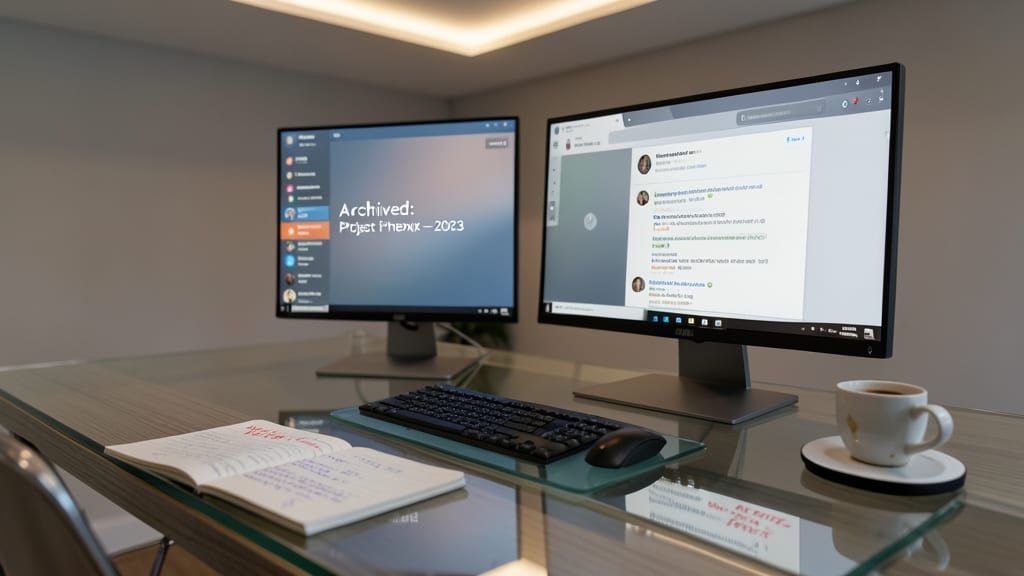
Every project eventually wraps up—but the default Teams channel it leaves behind? That’s just digital clutter. Archiving inactive channels keeps your workspace lean while preserving all the work history for future reference, so you’re not stuck deleting or losing critical discussions.
To archive, simply click the three-dot menu next to the channel name, select Archive, and confirm. Archived channels stay searchable and accessible (with a subtle grayed-out indicator), but they disappear from the active list. Set a monthly reminder to review completed projects—this habit alone can cut your channel count by 30% without losing a single file or message.
This is especially useful for project-based teams or departments with frequent turnovers. A clean workspace means faster navigation and fewer distractions during active work. ✨
Leverage Channel Themes for Visual Organization
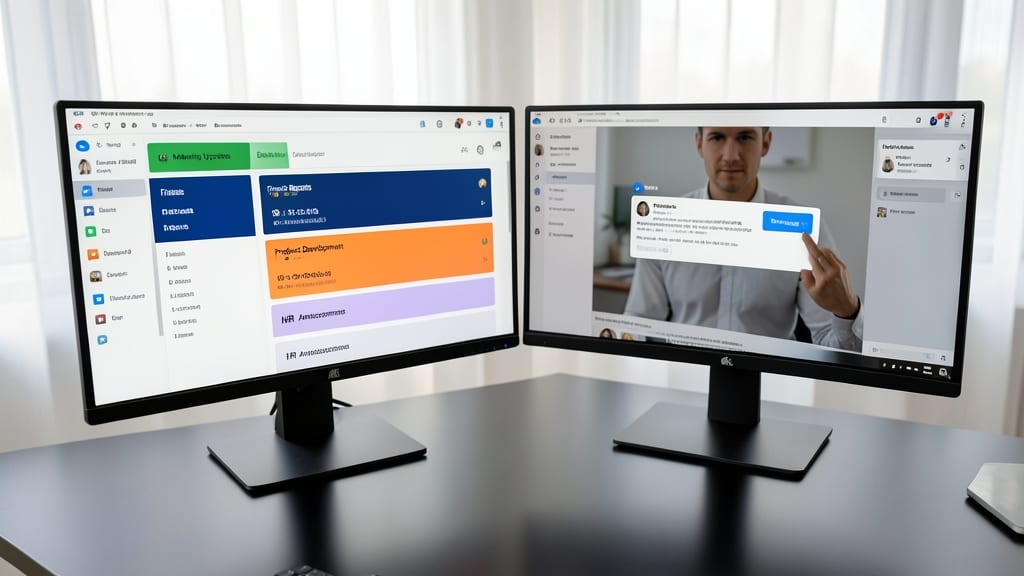
Tired of scanning a long list of channels only to forget which one belongs to which team? Channel themes turn your Teams sidebar into a visual roadmap, making navigation effortless. Assign a consistent color scheme—like green for marketing or blue for finance—so your team can spot relevant channels at a glance without reading names.
To set this up, go to Team settings > Channel themes and pick from Microsoft’s built-in palette or upload custom colors. Pro tip: Document your color scheme in a shared doc so new hires or remote teams stay aligned. This small tweak cuts decision fatigue by letting your brain process visual cues faster than text.
Teams with cross-functional projects or large departments will see the biggest benefits—no more guessing which channel is for sales vs. support. ⚡
Pin Frequently Used Channels for Quick Access
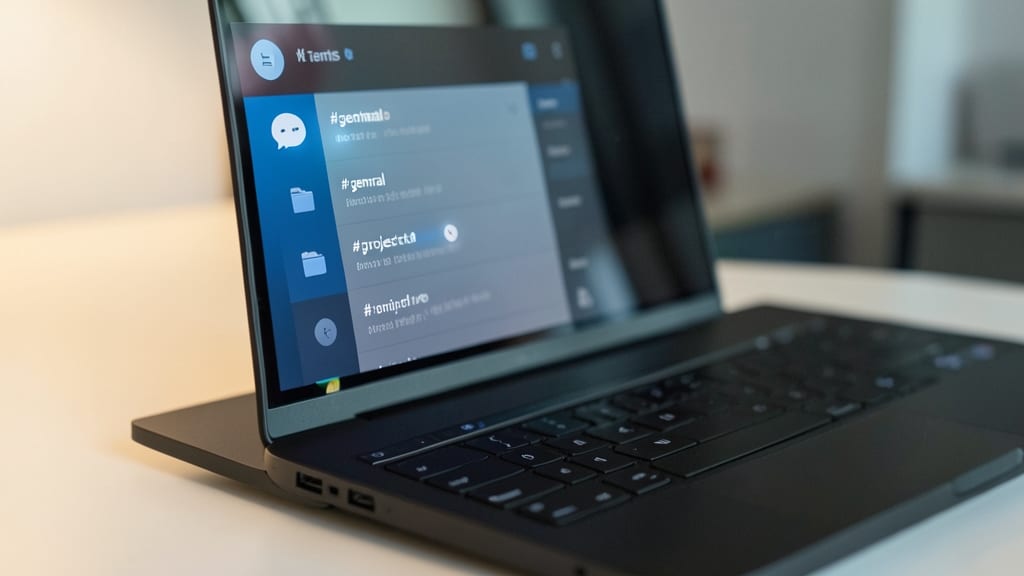
Tired of scrolling through endless channels every time you need to check in on a project? Pinning your most-used channels in Microsoft Teams cuts that wasted time by keeping critical hubs—like #general or #projects—always visible at the top of your sidebar.
To pin a channel, simply hover over it, click the three-dot menu, and select Pin. Teams will then highlight these channels with a star icon, ensuring they’re the first thing you see. This is especially useful for remote teams or fast-paced workflows where quick access to key discussions saves minutes every hour.
Perfect for team leads, project managers, or anyone juggling multiple active channels, pinning ensures you never miss updates in your go-to spaces. ⚡
Use Channel Templates for Consistency
Why reinvent the wheel every time a new project kicks off? Channel templates in Microsoft Teams let you clone entire setups—tabs, files, and permissions—in seconds. If your team handles recurring tasks like #event-planning or #client-onboarding, templates ensure every new channel starts with the right structure, saving hours of setup time.
To create one, go to Teams admin center > Teams > Create team from template. Pre-load essential tabs (e.g., #docs for templates, #meetings for schedules) and set default permissions. For example, a marketing campaign template could include a #assets tab for brand guidelines and a #calendar tab for deadlines. Teams admins can even restrict template access to specific roles for added control.
This is a game-changer for remote teams or departments with frequent, similar projects. No more scattered channels—just consistent, ready-to-go workspaces. ✨
Train Teams on Channel Etiquette
Ever scrolled through a Teams channel only to find off-topic chatter buried under important updates? Clear channel etiquette guidelines can transform chaotic discussions into focused, professional conversations—without stifling creativity.
Start by defining three core channel types: Use #general for team-wide announcements, #random for lighthearted or off-topic chats, and private channels for sensitive or department-specific work. Share a simple training doc with examples—like reserving @channel mentions for urgent updates only—to set expectations. Pro tip: Host a 15-minute team session to walk through these rules and answer questions live.
This approach works best for remote teams or cross-functional groups where clear boundaries prevent miscommunication. With guidelines in place, your team will spend less time sifting through noise and more time collaborating effectively. ✨