Tip & Trick
Microsoft Teams is a powerhouse for collaboration—but most users only scratch the surface. These 10 hidden 2023 features will transform how you communicate, organize, and automate workflows, saving you hours weekly.
One-Click Meeting Transcripts with AI
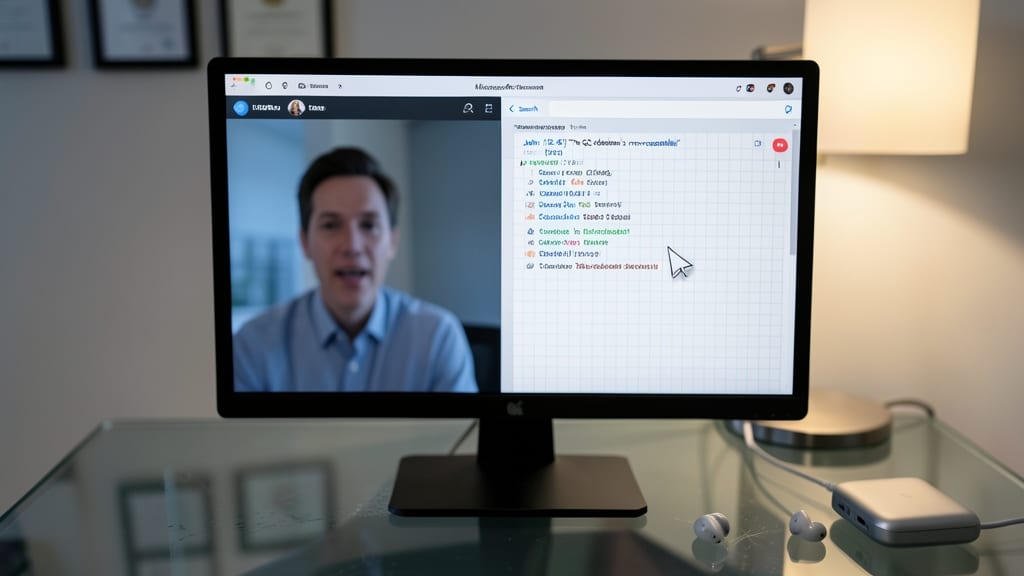
Ever spent hours manually transcribing meetings only to realize you missed a key detail? Microsoft Teams now offers one-click AI-powered meeting transcripts—automatically capturing every word, timestamp, and speaker for searchable notes. This game-changer eliminates the need for scribbling or relying on memory, ensuring you never miss a compliance-critical moment or project detail again.
The feature works seamlessly during calls and meetings, generating transcripts in real-time that you can save, edit, or share with your team. With speaker identification and keyword highlighting, you can quickly locate decisions, action items, or legal references. Best of all, it supports private 1:1 meetings too—no manual note-taking required. For legal teams, compliance officers, or anyone managing sensitive discussions, this is a productivity lifesaver.
Ideal for professionals who need audit trails, client updates, or training documentation, this tool turns passive meeting attendance into actionable insights—all without lifting a finger. No more scrambling for notes after a call! ⚡
Customizable Status Messages with Emoji
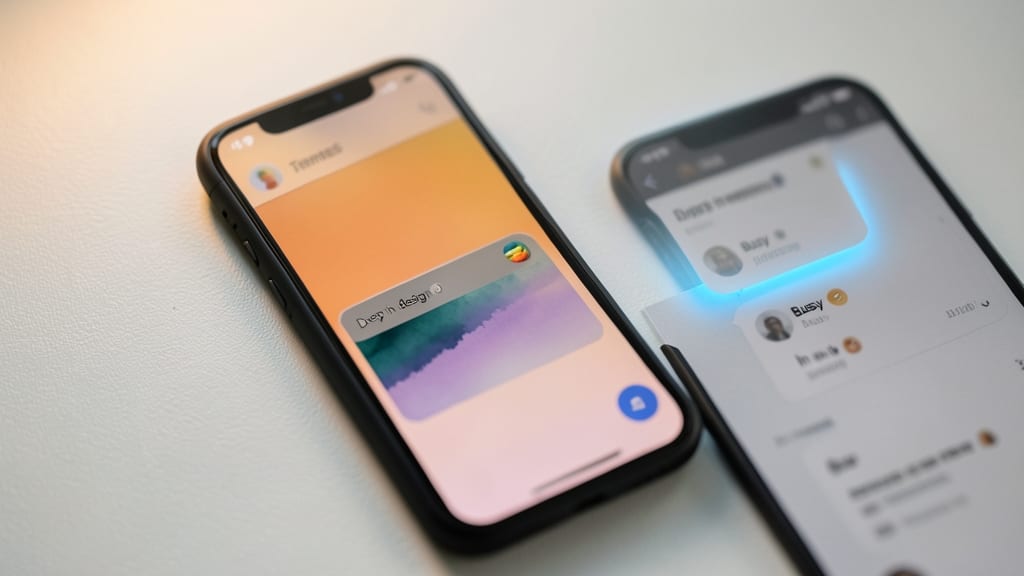
Tired of vague status messages like "Busy" or "In a meeting" that leave colleagues guessing whether to ping you? Microsoft Teams now lets you customize status messages with emoji—adding visual context to your availability in seconds. For example, type "Deep in design 🎨" to signal you’re focused on creative work, or "Debugging 🐞" to let IT know you’re troubleshooting. These emoji-enhanced statuses help teams prioritize requests without clogging chats with unnecessary messages.
To set it up, click your profile picture, select "Set status message," and choose from built-in emoji options (🚀 for travel, 🧠 for deep work, or 🎧 for audio calls) or add your own. The feature syncs across devices, so your status updates instantly whether you're on desktop or mobile. Teams also supports custom emoji shortcuts, letting you create a library of frequently used statuses—like "Client call 📞" or "Lunch break 🍽️"—to save time.
This is a game-changer for remote teams, freelancers, or anyone juggling multiple priorities. Instead of playing "guess the status," colleagues instantly know whether to send a message or wait. Try it today and watch your team’s communication clarity skyrocket! 💡
Shared Channels for Cross-Team Collaboration
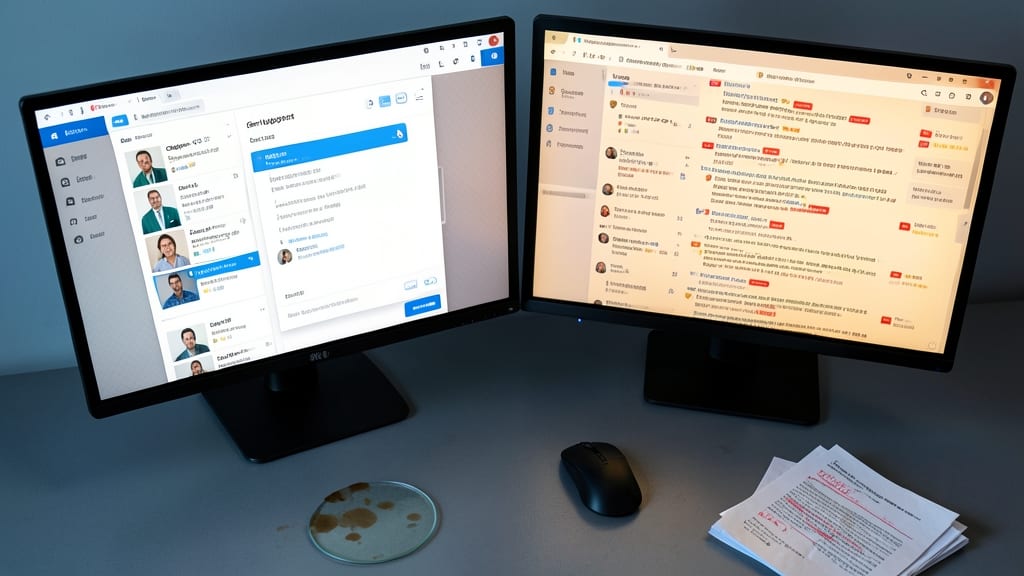
Frustrated by endless email chains to share project updates with clients or contractors? Shared Channels in Teams lets you invite external teams to specific channels—without granting full account access—so everyone stays on the same page without the clutter.
Create a shared channel in seconds by selecting "Add channel" and choosing "Shared with external users." They’ll get read-only or edit access (your call) and can join via a simple link—no Teams account required. Perfect for agencies managing multiple clients or freelancers collaborating on deliverables, this keeps sensitive internal channels private while streamlining external workflows.
Ideal for agencies, remote teams, or any group juggling external stakeholders—cut the back-and-forth and keep collaboration seamless. ✨
Meeting Polls with Real-Time Analytics
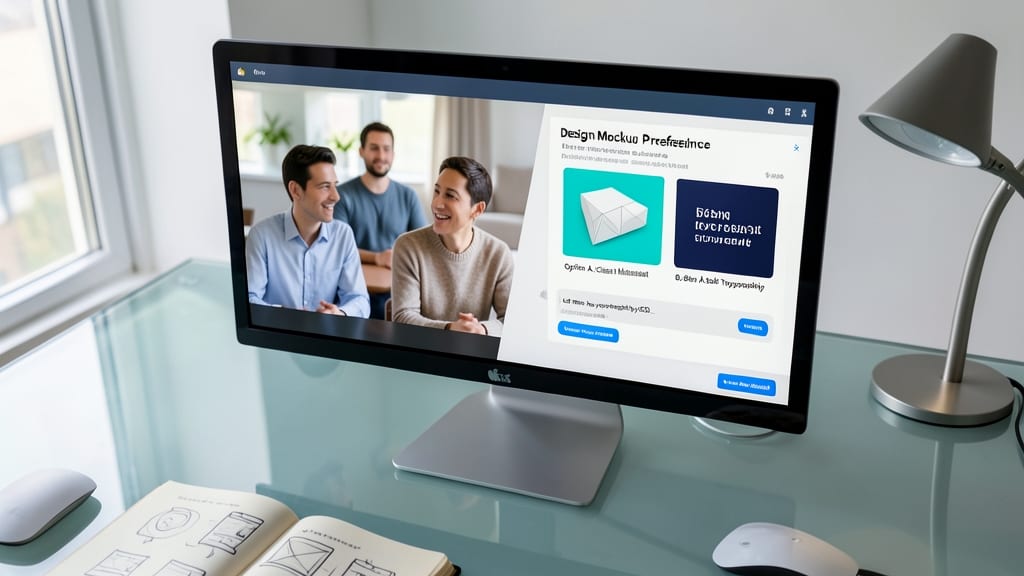
End those endless "Let me know your thoughts by EOD" emails—Meeting Polls in Teams lets you instantly gauge opinions during calls with live results. Whether you're deciding between two design mockups or prioritizing project tasks, polls turn passive feedback into actionable data in seconds.
Create polls with multiple-choice, emoji reactions, or Q&A formats, and watch results update in real-time via a sleek bar graph or word cloud. The feature integrates seamlessly with screen sharing, so you can highlight the winning option while everyone sees the data. Pro tip: Use anonymous polling to encourage honest feedback in sensitive discussions.
Perfect for remote teams, educators, or anyone leading brainstorming sessions—no more digging through follow-up emails to find consensus. ⚡
Keyboard Shortcuts for Power Users
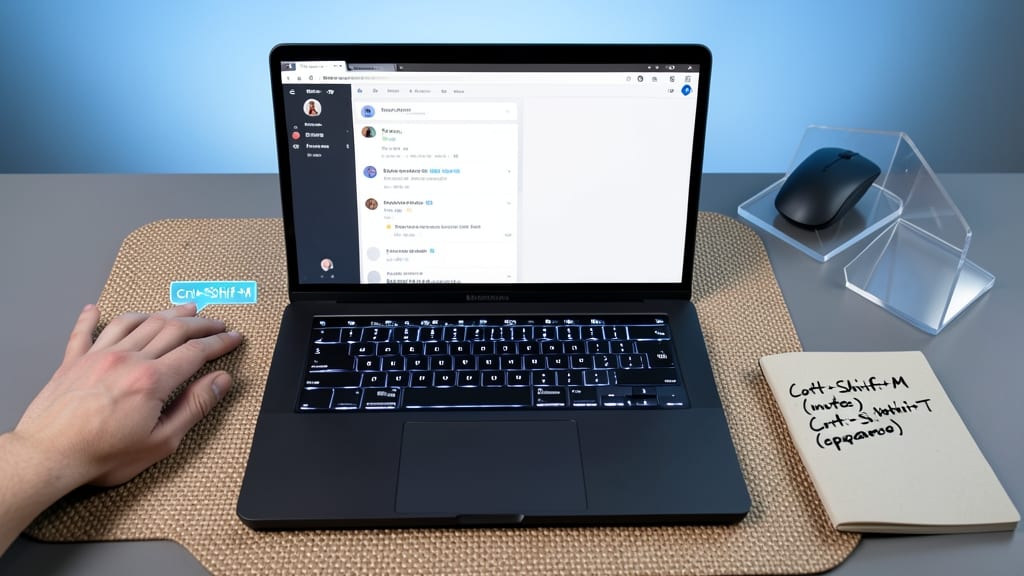
If you spend hours in Teams daily, keyboard shortcuts can cut your navigation time by up to 70%. Microsoft Teams packs over 20+ hidden shortcuts—from reopening closed tabs (Ctrl+Shift+T) to muting/unmuting instantly (Ctrl+Shift+M)—designed to keep your hands on the keyboard and workflows seamless.
The most powerful shortcuts include:
Ctrl+Eto open the search bar instantlyCtrl+Shift+Wto close all open tabs at onceAlt+Shift+Dto start a new meeting directly from chatCtrl+Shift+Pto pin/unpin a channel
These work across Windows, Mac, and web versions, ensuring consistency whether you're in a meeting or managing channels.
Perfect for developers, customer support reps, or anyone juggling multiple chats, these shortcuts eliminate mouse fatigue and speed up repetitive tasks. Start with the top 5, then expand—your fingers (and productivity) will thank you. ⚡
Background Blur with Virtual Green Screen

Tired of static backgrounds that scream "I work from my couch"? Teams now lets you swap them for virtual green screens—think a bustling Paris café or a sleek office—while keeping your actual background blurred for privacy.
Enable it in Settings > Background filters, then toggle "Virtual background" and select from pre-loaded scenes. The AI-powered blur works even with messy home setups, while the dynamic scenes add polish to client calls. Pro tip: Pair it with lighting adjustments for a studio-quality look.
This is a game-changer for hybrid teams balancing professionalism and comfort—no fancy equipment needed. ✨
Automated Reminders for Channel Updates
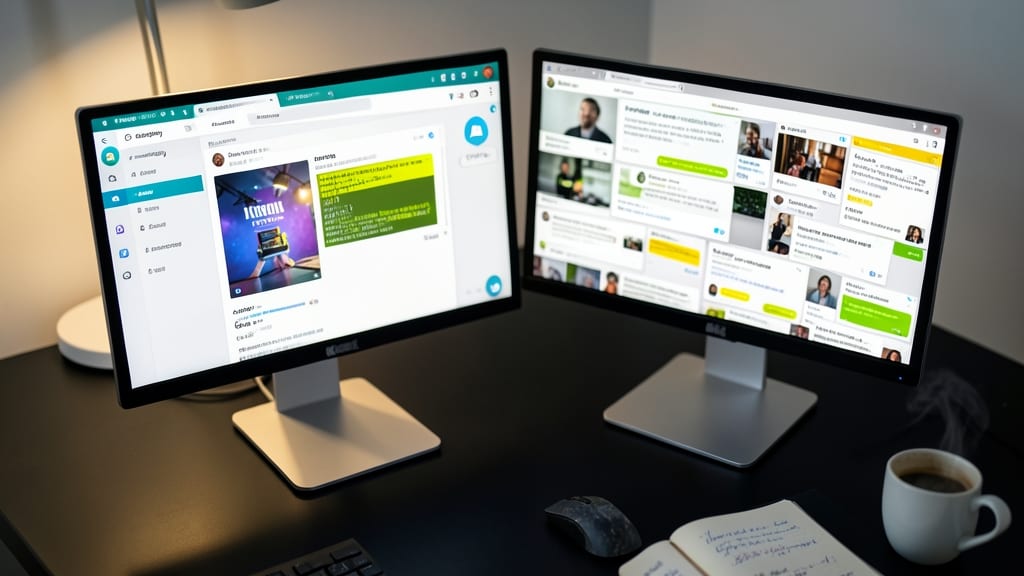
Tired of scrolling through channels only to miss that one critical update? Microsoft Teams now lets you set automated reminders for specific channels—like getting notified exactly when #marketing posts new assets or #dev deploys updates. No more manual checks or forgotten follow-ups.
To set it up, right-click any channel in your sidebar, select "Set reminder", and choose how often you want alerts (daily, weekly, or custom). You can even filter by keywords (e.g., "design," "launch") to refine notifications. The best part? These reminders sync with your Teams calendar, so you’ll never double-book or overlook deadlines.
This is a game-changer for distributed teams juggling multiple projects or departments. Whether you’re a project manager tracking deliverables or a freelancer monitoring client channels, these alerts keep you in the loop—without the noise. 💡
Whiteboard Integration for Visual Brainstorming
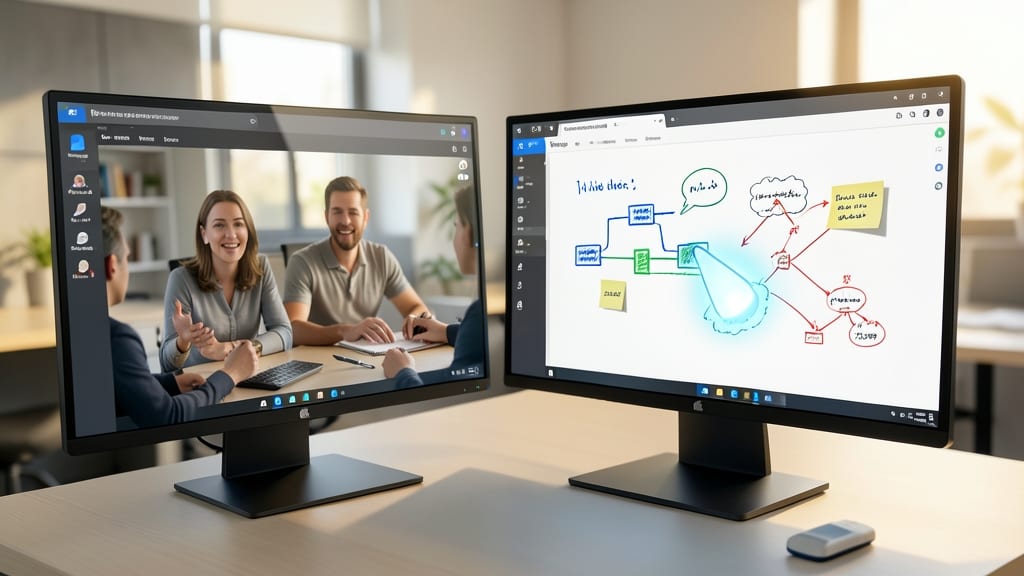
Turn your brainstorming sessions into dynamic, interactive experiences with Microsoft Whiteboard—now seamlessly integrated into Teams. No more switching tabs or juggling separate apps; this tool lets you sketch, annotate, and collaborate on a shared canvas in real-time, all within your existing workflow.
With features like sticky notes, freehand drawing, and pre-built templates (including flowcharts and wireframes), you can map out ideas visually while colleagues add input simultaneously. The laser pointer tool keeps presentations focused, and saved whiteboards sync across devices so your team can revisit ideas later—no lost notes or scattered sticky pads. Perfect for designers refining mockups or educators planning lessons together.
Ideal for teams that thrive on visual collaboration, this feature eliminates the friction of external tools while keeping creativity flowing. Give it a try in your next meeting—no extra setup required! ✨
Focus Mode for Deep Work Sessions
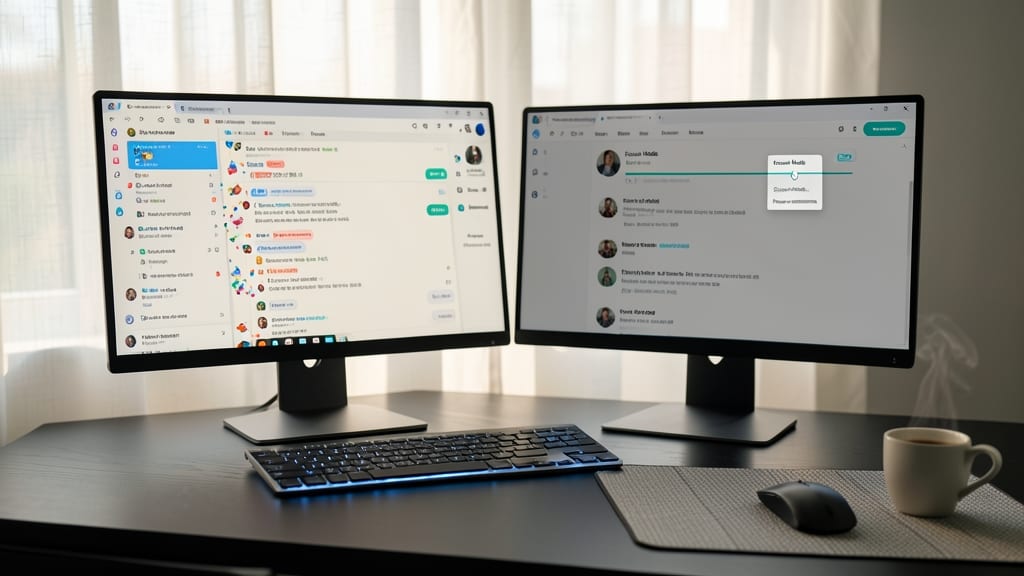
Struggling to focus in a sea of notifications? Microsoft Teams’ Focus Mode lets you silence distractions with a single click—ideal for when you need to dive deep into projects or creative work.
Enable it by clicking your profile picture, selecting "Focus Mode", and choosing which channels or apps to hide temporarily. Studies show this reduces interruptions by up to 60%, making it perfect for writers, developers, or anyone tackling high-concentration tasks. You can even set a custom duration (e.g., 90 minutes) to auto-re-enable notifications when your session ends.
Teams admins can enforce Focus Mode for entire organizations, ensuring meetings or brainstorming sessions stay distraction-free. Give it a try during your next deep work sprint—your productivity will thank you. ✨
Custom App Shortcuts in Teams
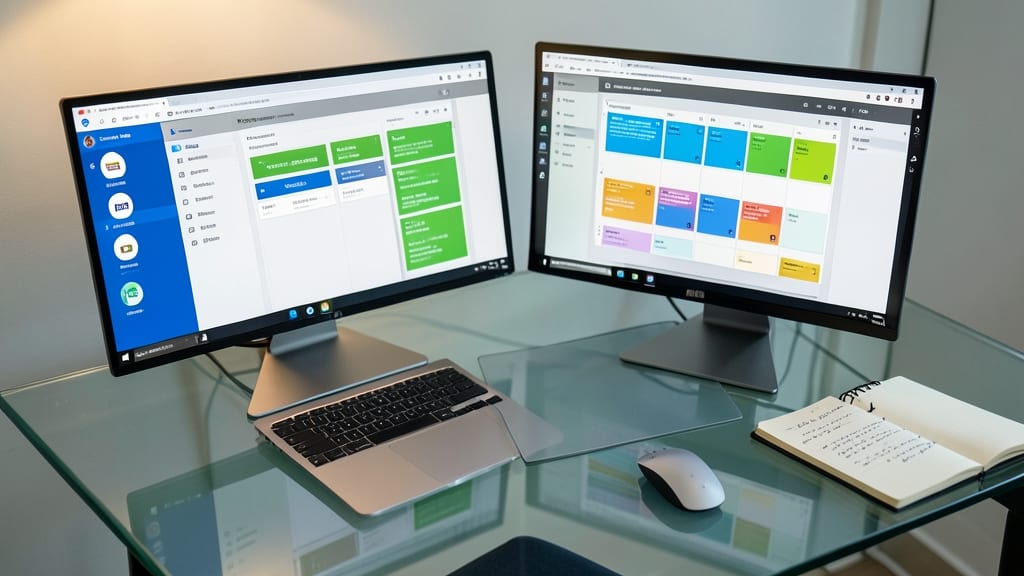
Tired of toggling between Teams and your favorite productivity apps like Trello or Notion every five minutes? The Custom App Shortcuts feature lets you pin these tools directly to your Teams sidebar, turning context-switching into a single click.
Simply add your most-used apps (over 100+ integrations supported) and arrange them in your preferred order. The shortcuts open in a seamless overlay, so you never leave Teams—no browser tabs or app-switching required. It’s perfect for project managers juggling multiple tools or developers referencing docs mid-meeting.
Ideal for power users who thrive on efficiency, this feature transforms Teams into a true all-in-one workspace. ⚡