
Outlook
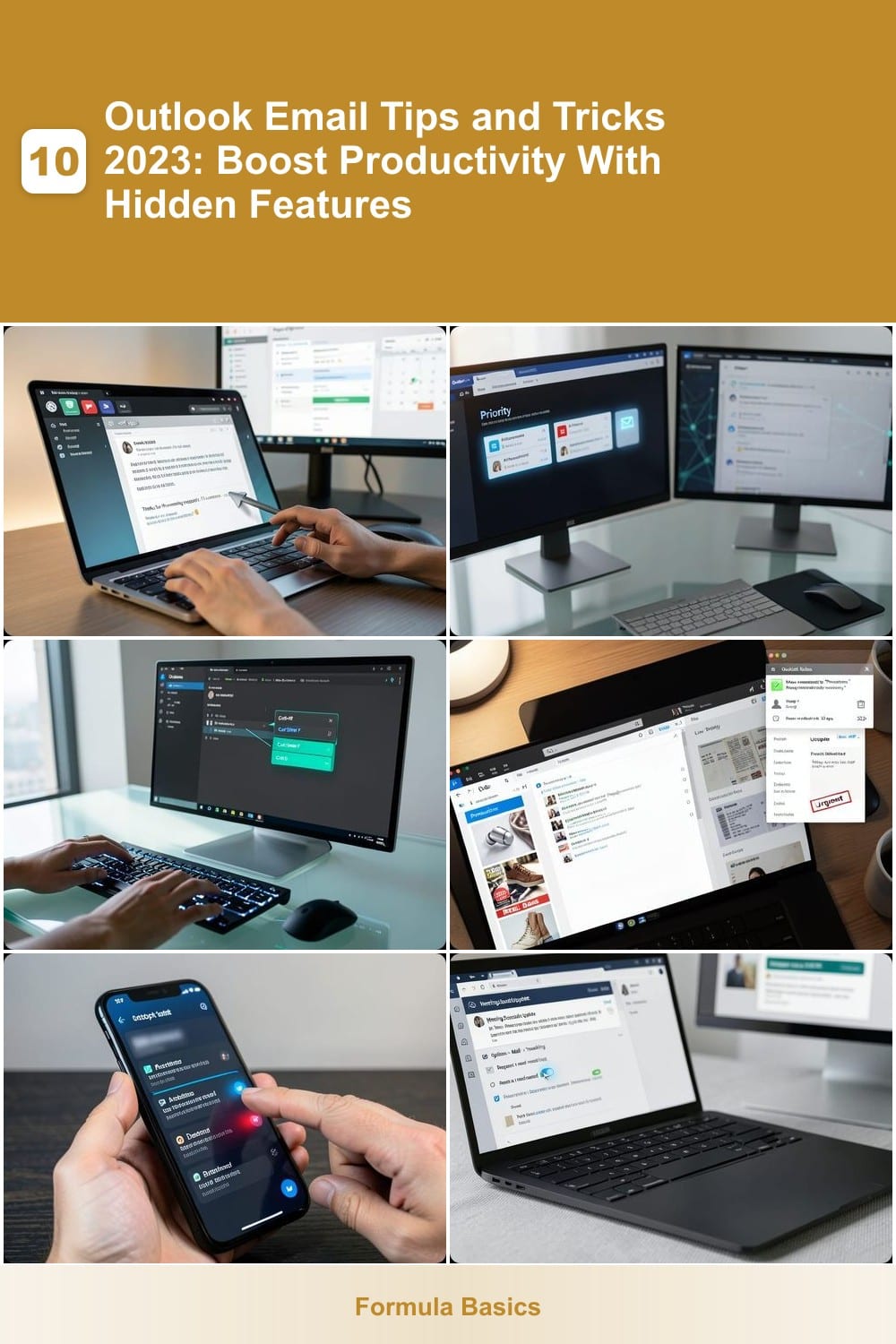
Microsoft Outlook is packed with hidden features that can transform your email workflow. These 10 Outlook email tips and tricks for 2023 will help you save time, organize your inbox smarter, and automate repetitive tasks—whether you're a busy professional or a casual user.
Quick Steps to Automate Email Responses
Tired of typing the same responses over and over? Outlook’s Quick Steps let you automate repetitive email tasks in seconds—no coding required. Create a custom step to instantly reply to meeting requests, flag urgent messages, or even forward emails to a team folder with a single click.
Start by clicking the Quick Steps button in the Home tab, then choose from pre-built actions like "Reply to sender" or "Move to folder." For power users, combine steps—like "Reply, then flag as high priority"—to streamline workflows. These templates sync across devices, so your automation follows you from desktop to mobile.
Perfect for customer support teams, project managers, or anyone drowning in boilerplate replies. Set up your first Quick Step today and reclaim hours of manual work every week! ⚡
Focused Inbox for Prioritizing Emails
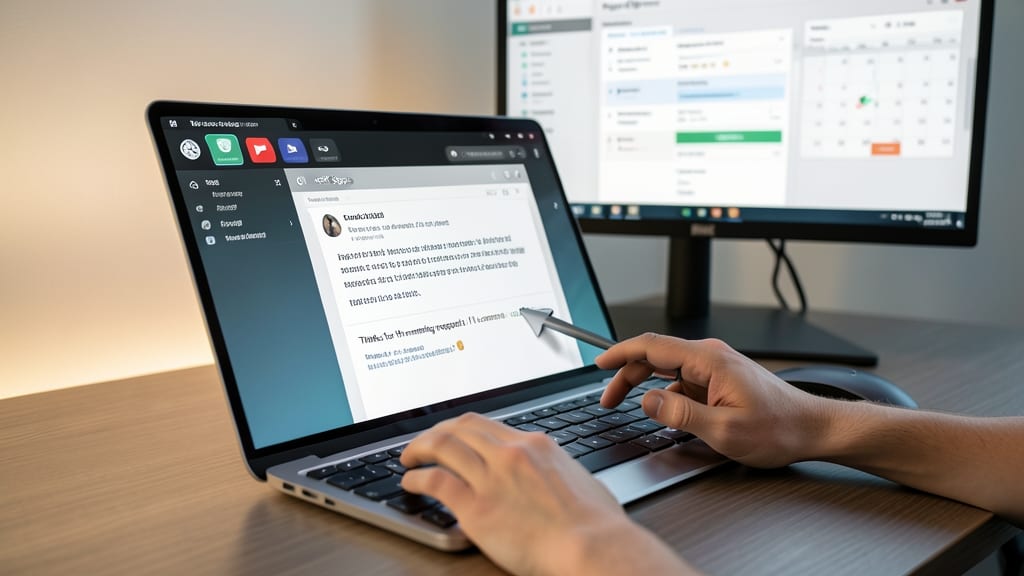
Drowning in emails but struggling to spot what truly matters? Outlook’s Focused Inbox uses AI to automatically sort your messages into "Priority" and "Other" tabs, ensuring critical emails stand out while filtering out distractions. Unlike manual folders, this feature learns from your habits—flagging urgent messages from clients or managers while tucking away newsletters and promotions.
To enable it, go to View > Focused Inbox in the desktop app or toggle it in the web version. You can also train the system by right-clicking emails and selecting "This is important" or "This is not important"—the more you use it, the smarter it gets. Best of all, it syncs seamlessly across your desktop, mobile, and web, so your inbox stays organized no matter where you check it.
This trick is a lifesaver for professionals juggling multiple projects, freelancers managing client communications, or anyone tired of sifting through clutter. Try it today and reclaim control of your inbox without the manual work! ⚡
Keyboard Shortcuts for Faster Navigation
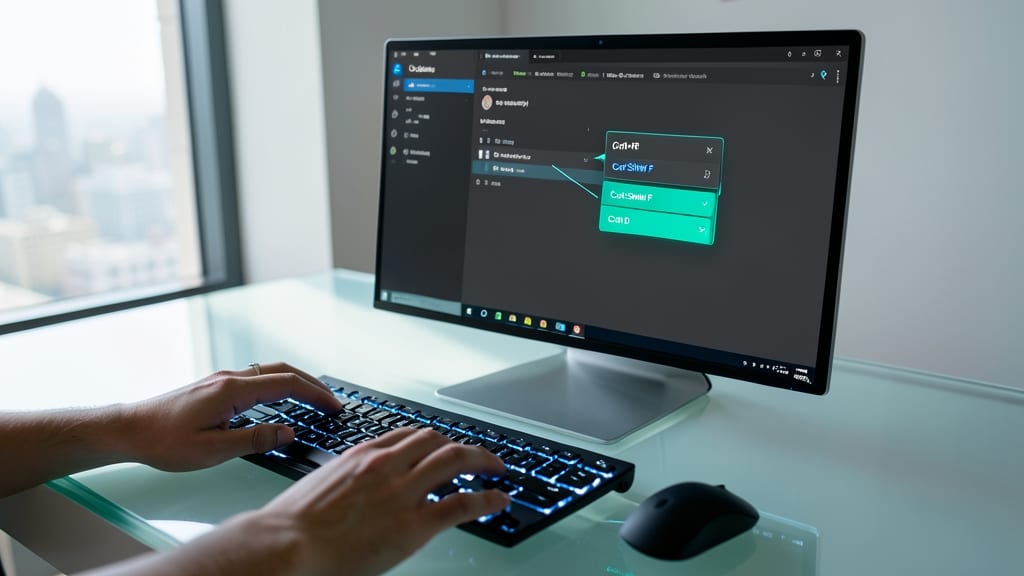
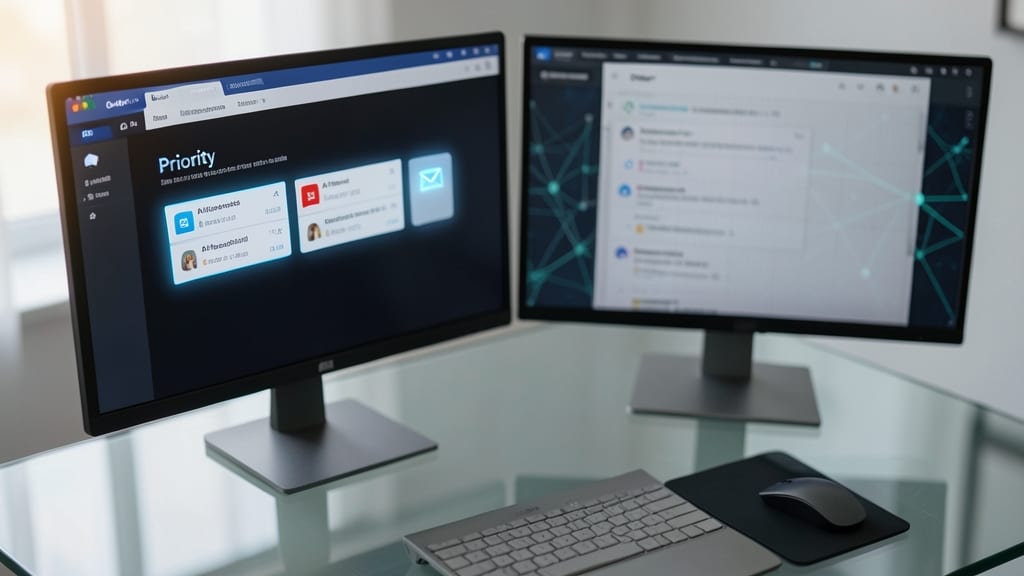
If you spend hours clicking through menus to manage emails, keyboard shortcuts can turn Outlook into a lightning-fast workspace. With just a few keystrokes, you can compose, reply, flag, or delete emails without ever reaching for your mouse—ideal for power users who want to reclaim lost minutes daily.
Start with the basics: Ctrl+N to compose a new email, Ctrl+R to reply, and Ctrl+Shift+R for a reply-all. Need to flag an email? Use Ctrl+Alt+1 (or adjust the number for priority levels). For navigation, Ctrl+Shift+E jumps to your inbox, while Ctrl+Shift+I opens your calendar—perfect for multitaskers. Pro tip: Customize your shortcuts in File > Options > Customize Ribbon to fit your workflow.
This trick is a game-changer for developers, sales reps, or anyone drowning in emails. Master these shortcuts, and you’ll shave 10+ minutes off your daily routine—no extra tools required. 💻
Rules to Auto-Organize Your Inbox
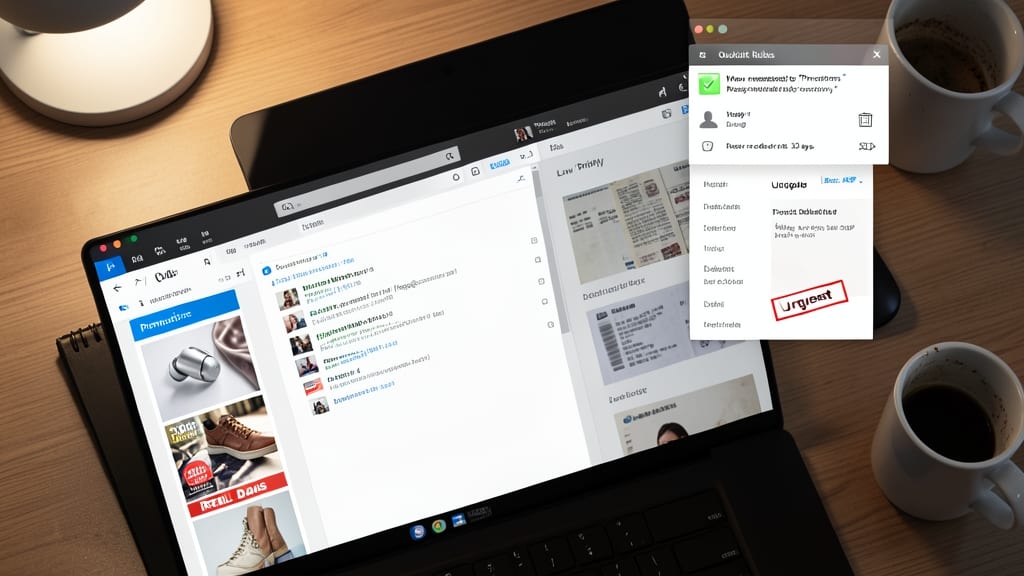
Tired of wading through promotional spam and low-priority emails daily? Outlook’s automated rules can handle the sorting for you—saving you hours every week. Set up rules to automatically move newsletters to a dedicated folder, flag urgent messages from your boss, or even delete receipts and confirmations without lifting a finger.
You can create rules based on senders (like "Move all emails from Amazon to the Shopping folder"), keywords (e.g., "Flag emails containing 'meeting notes'"), or attachments (such as "Save files with invoices to your Documents folder"). Rules can also run before delivery or after arrival, giving you full control. Best of all, these rules sync across your devices, so your inbox stays organized whether you're at your desk or on the go.
This feature is a game-changer for small business owners, students juggling multiple accounts, or anyone drowning in digital clutter. Try setting up just one rule today and watch your inbox transform. ✨
Swipe Actions for Mobile Efficiency
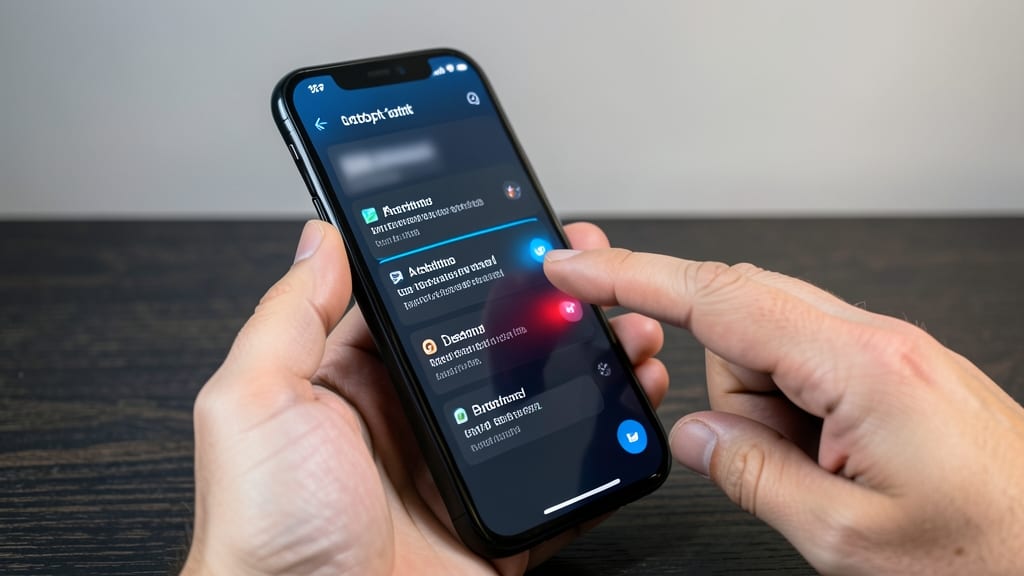
Tired of tapping through menus to manage emails on your phone? The Outlook mobile app’s swipe gestures let you archive, delete, or mark emails as unread in a single motion—no extra taps required. This feature turns your inbox into a lightning-fast workspace, perfect for professionals who juggle emails between meetings or while commuting.
With a left swipe, you can archive or delete emails instantly, while a right swipe lets you mark them as unread. These gestures sync seamlessly with your desktop settings, so your inbox stays organized no matter where you are. The best part? It works across both iOS and Android, making it a universal productivity hack.
Ideal for sales reps, managers, or anyone who spends hours on their phone, these swipe actions cut down on manual work—so you can focus on what matters most. ⚡
Track Email Openings and Replies
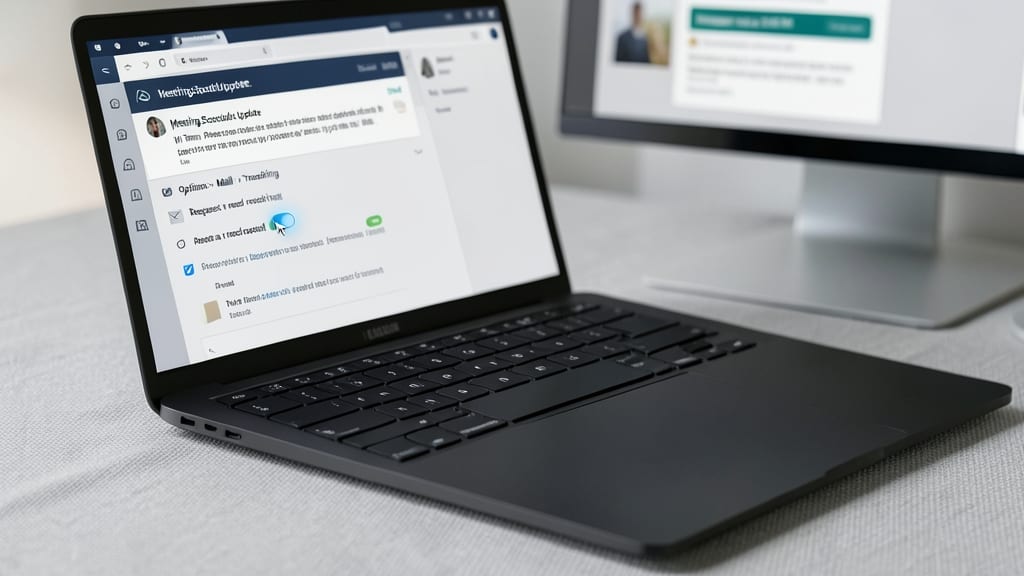
Ever sent an important email and wondered if it was even read? Outlook’s read receipts and reply tracking let you know exactly when recipients open or respond to your messages—no guessing required.
Enable read receipts in Outlook by selecting Options > Mail > Tracking and checking "Request a read receipt." For replies, use Follow Up flags or third-party add-ins like Hunter.io or Yesware to track responses without extra effort. These tools provide real-time notifications, so you can follow up at the perfect moment—whether it’s a sales pitch or a project update.
This feature is a game-changer for sales teams, project managers, and anyone who needs to ensure accountability. No more chasing down responses—just data-driven follow-ups. ✨
Clean Up Conversation Threads Instantly
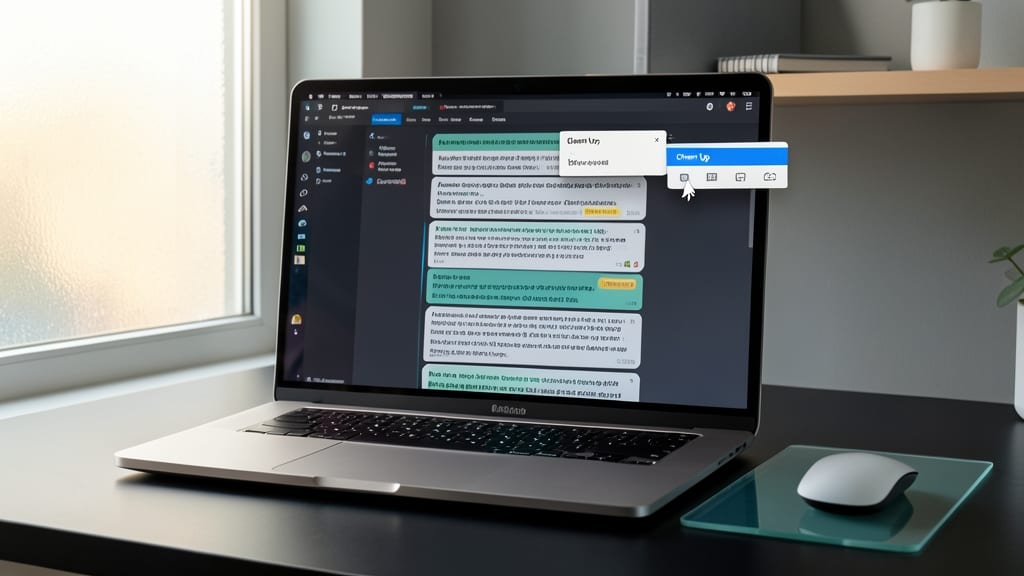
Drowning in email threads that stretch for pages? Outlook’s Clean Up feature lets you collapse entire conversations into a single line with just one click—no manual archiving or tedious scrolling required.
Simply right-click any email in a thread and select Clean Up to condense replies while keeping the most recent message visible. This preserves context without cluttering your inbox, and it works seamlessly across desktop and web versions. Perfect for teams juggling long project discussions or anyone tired of scrolling through endless back-and-forths.
Ideal for professionals who need to stay organized without losing critical details, this hidden gem keeps your inbox tidy while ensuring you never miss a key update. ✨
Use Focused Inbox with Outlook on the Web
Tired of switching between Outlook apps just to keep up with your high-priority emails? The Focused Inbox feature in Outlook on the Web syncs seamlessly with your desktop and mobile experience, so you never miss a beat—whether you're at your office desk or working remotely from a café.
With Outlook on the Web, you get the same AI-powered prioritization as the desktop app, including the "Priority" and "Other" tabs. The best part? It works instantly across any browser—Chrome, Firefox, Edge—so your inbox stays organized no matter where you log in. Plus, you can toggle Focused Inbox on or off with a single click, giving you full control over your workflow.
This trick is a game-changer for remote workers, freelancers, or anyone who juggles multiple devices. Never let an important email slip through the cracks again! ✨
Customize Your Outlook Ribbon for Speed
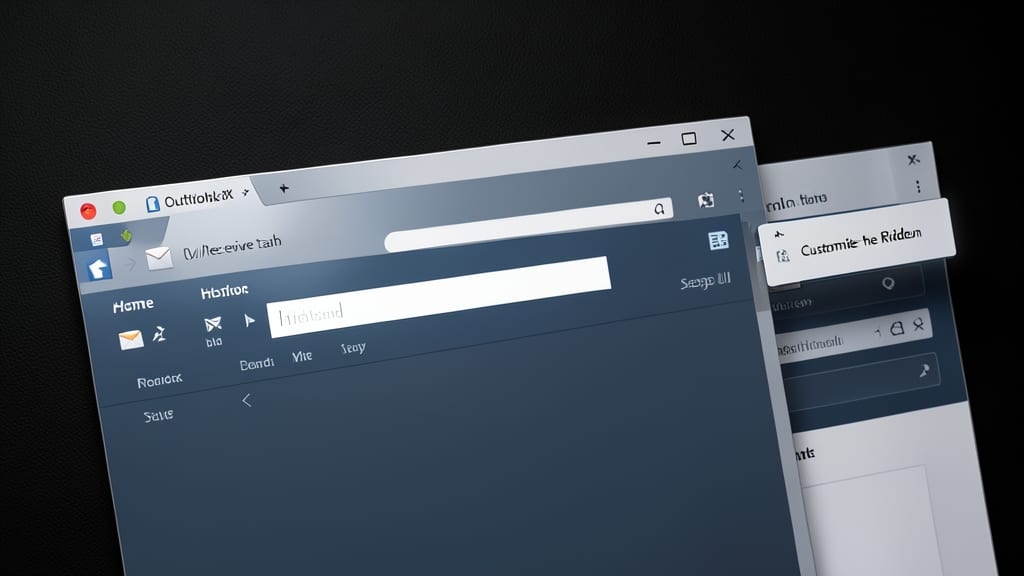
Tired of scrolling through a cluttered Outlook toolbar every time you need to send an email or flag a message? Customizing your Outlook Ribbon puts the tools you use most front and center, cutting down on wasted clicks and mental overhead.
Right-click any tab in the Ribbon (like Home or Send/Receive) to reveal options to add or remove commands. Drag frequently used buttons—such as Reply All, Flag, or Quick Steps—into a custom group, or hide rarely used features like Spelling & Grammar. For power users, you can even create a minimalist toolbar with just your top 5 actions, turning email tasks into one-click actions.
This trick is a game-changer for professionals with repetitive email workflows, like sales teams sending follow-ups or project managers tracking deadlines. Spend less time hunting for tools and more time getting things done. ✨
Search Emails Like a Pro with Operators
Tired of scrolling endlessly through years of emails to find that one important message? Outlook’s advanced search operators turn your inbox into a precision tool—no more guessing or manual sorting.
Use operators like from:john@example.com to filter by sender, subject:"project update" for exact phrases, or has:attachment to locate files instantly. Combine them for laser-focused results: from:sales AND subject:"invoice" AND date:2023. Works across desktop, web, and mobile—perfect for professionals juggling contracts, receipts, or client communications.
This is the ultimate time-saver for anyone drowning in digital clutter. Try it today and reclaim hours of lost productivity! ✨