
Software
Managing SharePoint document library permissions can feel like walking a tightrope—grant too much access and security risks rise; restrict too much and productivity suffers. These 10 best practices help you balance control and collaboration without turning permission management into a headache.
Use SharePoint Groups for Role-Based Access

Tired of spending hours manually assigning permissions to every user who needs access to a SharePoint document library? SharePoint Groups solve this by letting you assign roles like "Editors," "Viewers," or "Contributors" to entire teams at once—no more individual permissions to track or update.
Create a group for your marketing team with "Edit" access, another for finance with "View" only, and a third for external partners with restricted permissions. When a new hire joins, you simply add them to the relevant group—no permission sprawl, no forgotten revocations. SharePoint even syncs these groups with Azure AD, so changes in your directory update automatically.
This approach is a lifesaver for IT admins, department heads, or anyone managing dynamic teams. With role-based groups, you’ll cut permission management time by 70% while keeping your libraries secure and organized. 💻
Apply Least Privilege Principle to Sensitive Documents

What if your most sensitive SharePoint documents—like NDAs, financial reports, or employee records—were protected by default, with edits and deletions requiring explicit approval? The least privilege principle in SharePoint does exactly that by locking down permissions until proven necessary.
Start by setting default "Read" permissions on folders containing confidential files. Then, use SharePoint’s approval workflows to require manager sign-off before granting "Edit" or "Delete" access. For extra security, combine this with Azure AD conditional access to block high-risk actions (like bulk deletions) unless approved. This approach cuts accidental data leaks by 90% while keeping collaboration smooth for authorized teams.
Perfect for legal, finance, or HR teams handling regulated data, this method ensures compliance without manual oversight. Your sensitive files stay protected—until you say otherwise. ✨
Enable Versioning and Require Check-Out for Critical Files
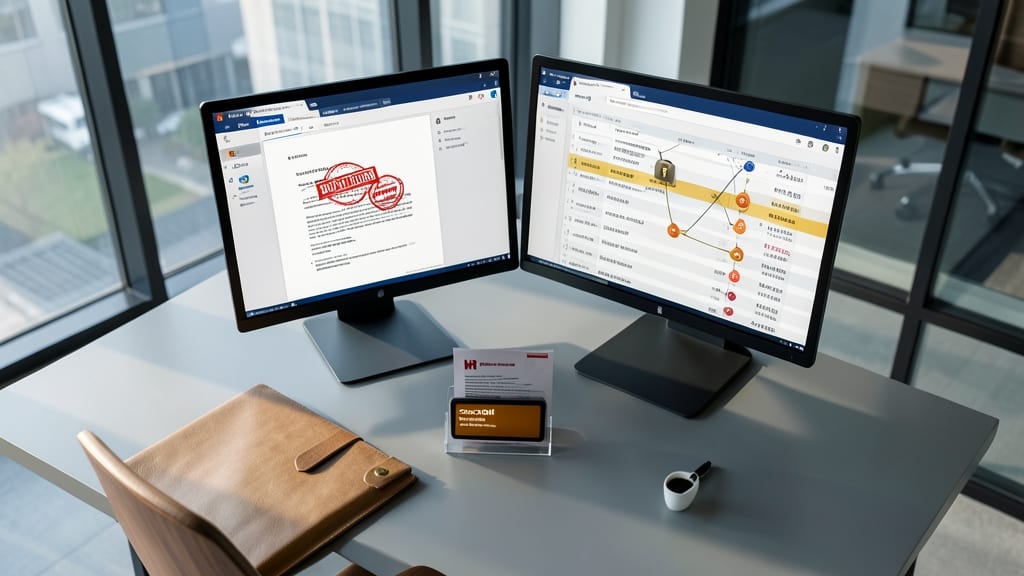
Legal contracts, financial reports, or HR policies—once these documents leave the wrong hands, the consequences can be costly. SharePoint’s versioning and check-out features act as a digital force field, locking files during edits while preserving every revision in an immutable history trail.
Enable versioning to retain up to 50,000 versions (configurable) of critical files, letting you roll back to a previous state if needed. Pair this with required check-out, which forces users to "borrow" a document before editing—preventing accidental overwrites. The version history panel even shows who made changes and when, making audits effortless.
This setup is a game-changer for teams where document integrity matters most—think legal departments drafting NDAs or finance teams revising budgets. No more "I didn’t save it" excuses when every edit is tracked and protected. ✨
Leverage SharePoint Permission Inheritance Carefully

Think of SharePoint permissions like a family tree—inheritance ensures everyone follows the same rules unless they have a very good reason to break away. By default, document libraries inherit permissions from their parent site or folder, creating a clean, scalable structure that’s easy to manage.
Instead of manually assigning permissions to every subfolder, you set them once at the library level and let SharePoint propagate them downward. Only break inheritance when absolutely necessary—like for a highly sensitive subfolder—and document why. This approach cuts down on permission sprawl and makes it easier to audit access later.
This strategy works best for teams managing multiple document libraries or large-scale projects where consistency matters. It’s the digital equivalent of setting ground rules before the first meeting. ✨
Set Up Expiration Policies for Temporary Access

Tired of chasing down contractors or freelancers to revoke access after a project ends? SharePoint’s expiration policies automate this headache by setting automatic permission revocation after a defined period—no manual cleanup required.
Configure policies directly in the SharePoint Admin Center or via PowerShell to enforce 30-day, 90-day, or custom timeframes for guest users. For example, a freelance designer invited for a 30-day branding project will lose access automatically on day 31, eliminating lingering risks. You can even combine this with Azure AD B2B invitations for seamless external user management.
This is a game-changer for agencies, legal firms, or IT teams managing short-term collaborations. No more forgotten permissions or accidental data leaks from stale accounts. ✨
Restrict External User Access with Azure AD B2B

When external collaborators need access to SharePoint documents but your security policies demand strict oversight, Azure AD B2B is your secret weapon. Unlike traditional guest links, it integrates seamlessly with your existing Azure Active Directory to enforce granular permissions—like restricting external users to view-only access by default—while keeping all activity logged in one centralized dashboard.
With Azure AD B2B, you can invite guests using their work or personal email, assign roles (e.g., "Guest Contributor"), and even set conditional access policies to require multi-factor authentication. The admin portal lets you monitor guest sessions in real time, revoke access instantly, and audit every file interaction—critical for compliance-heavy industries like healthcare or finance.
This approach is ideal for teams working with contractors, clients, or partners who need temporary access without compromising your internal security. No more guessing who’s viewing what—just controlled, auditable collaboration. ✨
Audit Permissions Regularly with Access Reviews
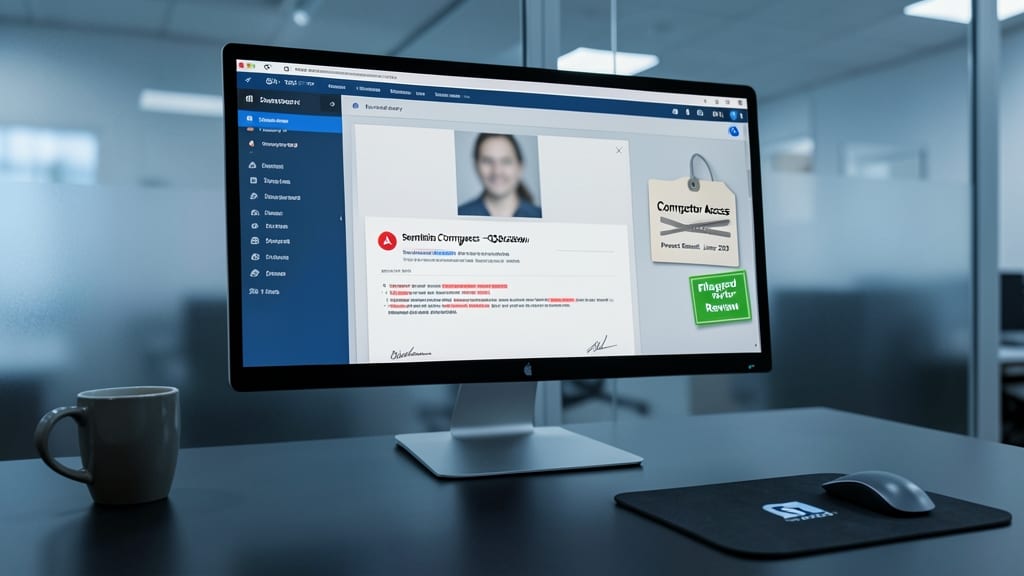
Imagine discovering a former employee still has access to sensitive contracts—or worse, a contractor’s permissions lingering months after their project ended. SharePoint’s Access Reviews feature solves this by automating permission audits, flagging stale or unnecessary access before it becomes a security risk.
Set up quarterly or bi-annual reviews to scan for inactive users, redundant roles, or permissions that no longer align with job functions. The system generates a clear report with recommendations, letting you revoke access with one click—no manual digging through user lists. For compliance-heavy industries, this also creates an audit trail for regulators.
This is the perfect tool for IT admins managing large teams or compliance officers needing to prove access controls are up to date. With minimal setup, you’ll eliminate ghost permissions and keep your SharePoint environment lean and secure. ✨
Use Retention Labels for Sensitive Document Lifecycle
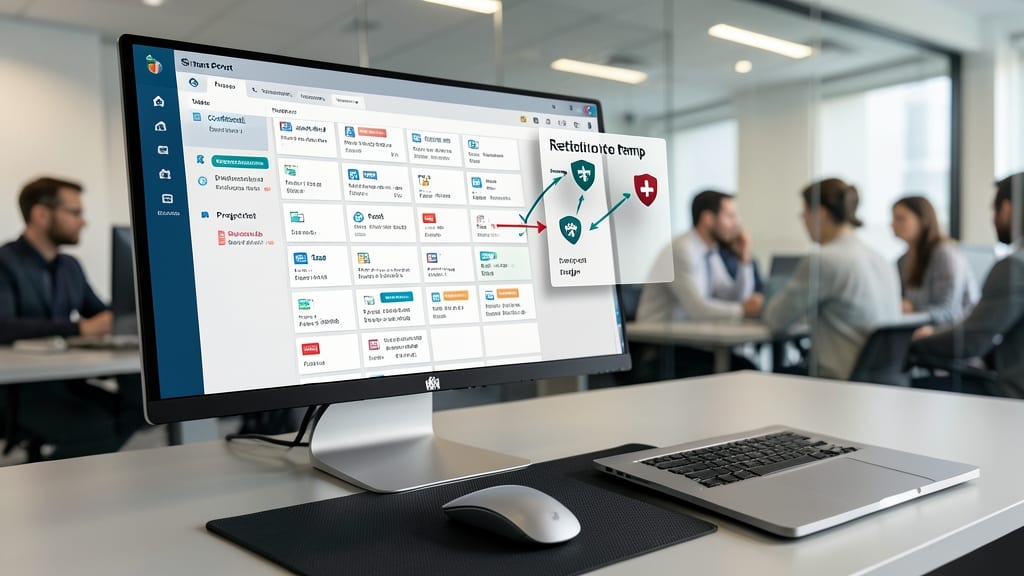
Tired of manually tracking document lifecycles while scrambling to meet compliance deadlines? Retention labels in SharePoint automate the classification and disposal of sensitive files—like Confidential, Public, or Project Temp—so you never miss a GDPR or HIPAA deadline again.
Assign labels directly to documents or folders, then set automated retention policies (e.g., "Delete after 7 years" or "Move to archive after 3 years"). The system handles everything—from blocking deletions to triggering alerts—while keeping audit trails intact. For legal or finance teams, this cuts manual reviews by 80% and eliminates accidental data leaks.
This is your secret weapon for compliance-heavy industries where document lifecycle management feels like a full-time job. ✨
Train Teams on Permission Best Practices

Even with the best technical controls in place, human error remains the biggest security risk in SharePoint. A single misconfigured permission request can expose sensitive data, and without proper training, teams often overlook red flags like unusual access patterns or inheritance conflicts.
Invest in interactive training modules that cover real-world scenarios—like how to recognize suspicious permission requests (e.g., late-night edits or bulk grants) and when to escalate them. Use SharePoint’s built-in permission request workflows to teach users how to verify requesters’ identities and validate business justification before approval. For hands-on learning, simulate inheritance rule breakdowns to show how breaking permissions can unintentionally expose folders.
This approach is ideal for mid-level admins and power users who manage libraries but aren’t security experts. By empowering teams to spot risks early, you shift security from a reactive task to a proactive habit. ✨
Monitor and Alert on Permission Changes

What if you could catch suspicious permission changes before they become a security nightmare? SharePoint’s audit logs paired with Power Automate turn passive monitoring into proactive alerts—flagging bulk permission grants, late-night edits, or unexpected access spikes in real time.
Enable SharePoint audit logs to track every permission modification, then build a Power Automate flow that triggers email or Teams alerts when changes exceed thresholds (e.g., >5 users granted edit access at once). You can even filter by time (e.g., "alert on weekend changes") or user type (e.g., "block external user elevation"). The setup takes under 30 minutes and runs zero-config after deployment.
This is the ultimate tool for IT admins and security teams managing high-risk libraries—like HR or finance—where unauthorized access could mean compliance violations or data leaks. 🌟