
Software
Microsoft Teams isn’t just for professionals—students can leverage its powerful collaboration tools to streamline group projects, ace exams, and stay connected with professors. These 10 benefits show how Teams can transform your academic experience without requiring tech expertise.
Real-time group project collaboration
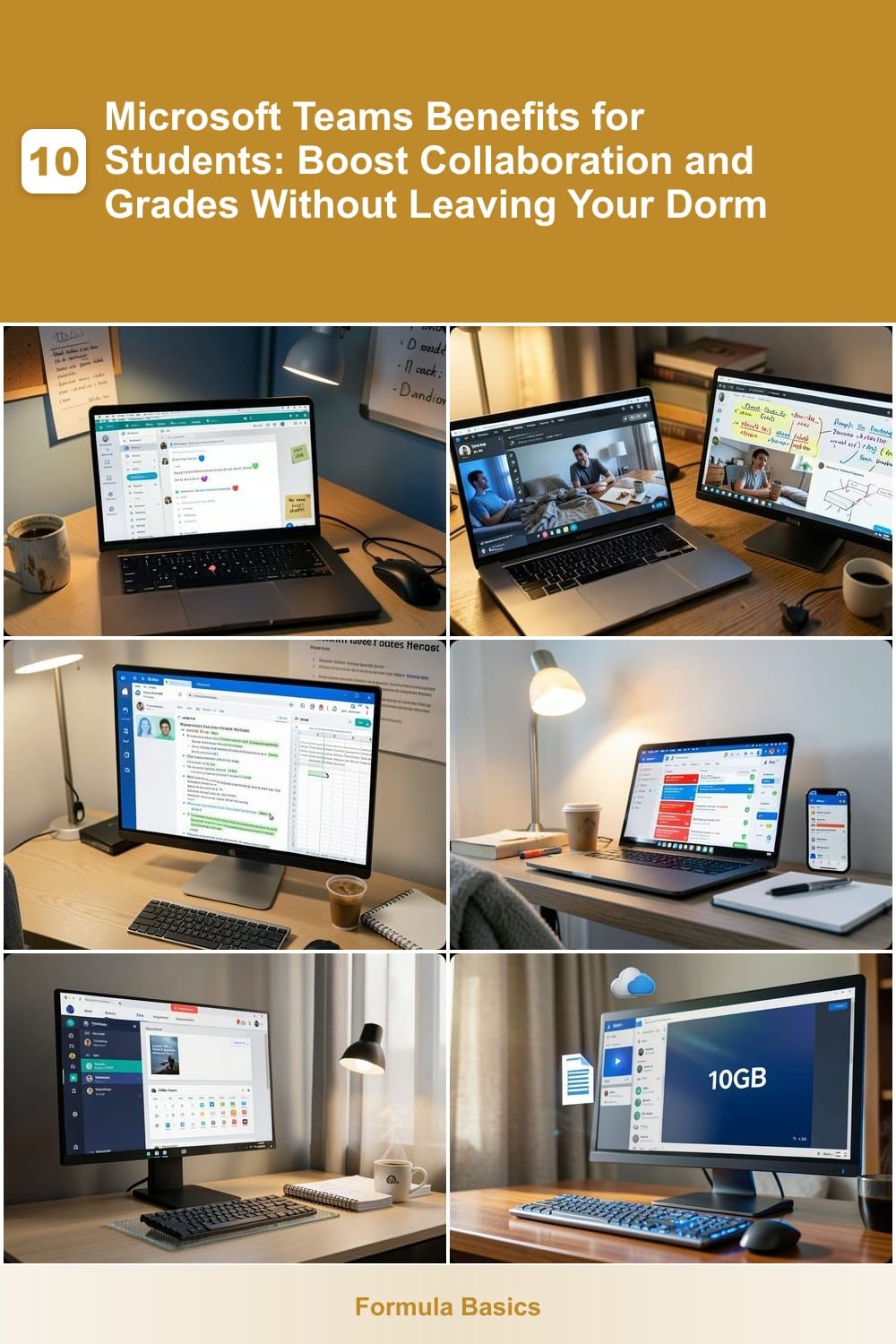
Drowning in group project chaos? Microsoft Teams turns chaotic email chains into a single, organized workspace where your team can co-edit documents, assign tasks, and chat—all in one place. No more lost drafts or "I thought you updated that" confusion.
With real-time document collaboration, multiple students can edit a Word doc, Excel spreadsheet, or PowerPoint presentation simultaneously, seeing changes as they happen. The @mention feature tags teammates for quick feedback, while task boards keep everyone on track with deadlines. Even the virtual whiteboard lets you brainstorm visually—perfect for brainstorming sessions or last-minute project tweaks.
This is your secret weapon for tight deadlines and remote teams, whether you're working from a dorm, library, or coffee shop. No more late-night panics over missing files—just smooth, real-time teamwork. ⚡
Virtual study hall integration
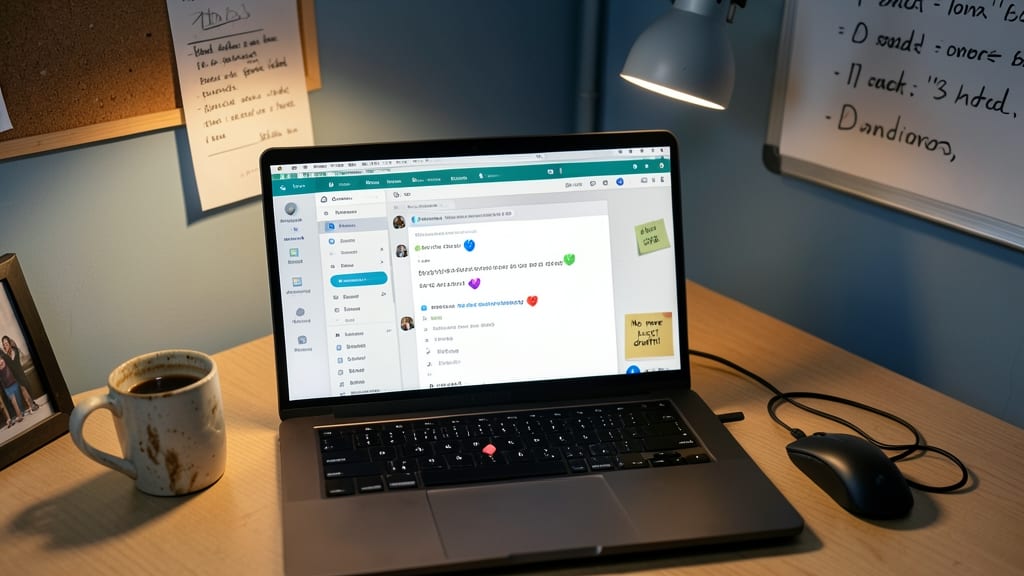
Cramming for finals but stuck in separate dorms? Microsoft Teams turns your screen into a virtual study hall—complete with screen sharing, a collaborative whiteboard, and breakout rooms to split into smaller groups. No more awkward group chats or lost notes—just a dedicated space where you can present flashcards, solve equations together, or even record study sessions to replay later.
The whiteboard tool lets you sketch diagrams, annotate PDFs, or brainstorm ideas in real time, while breakout rooms mimic in-person study groups by dividing your session into focused sub-chats. Host a timed quiz using the poll feature or share your screen to walk through lecture notes—all without leaving the app. The virtual high-fives and reactions keep morale up during late-night sessions too.
This is the ultimate tool for exam prep, language exchange groups, or project brainstorming—whether you're a night owl studying alone or coordinating a study sprint with classmates across campus. 💡
Seamless integration with Office 365
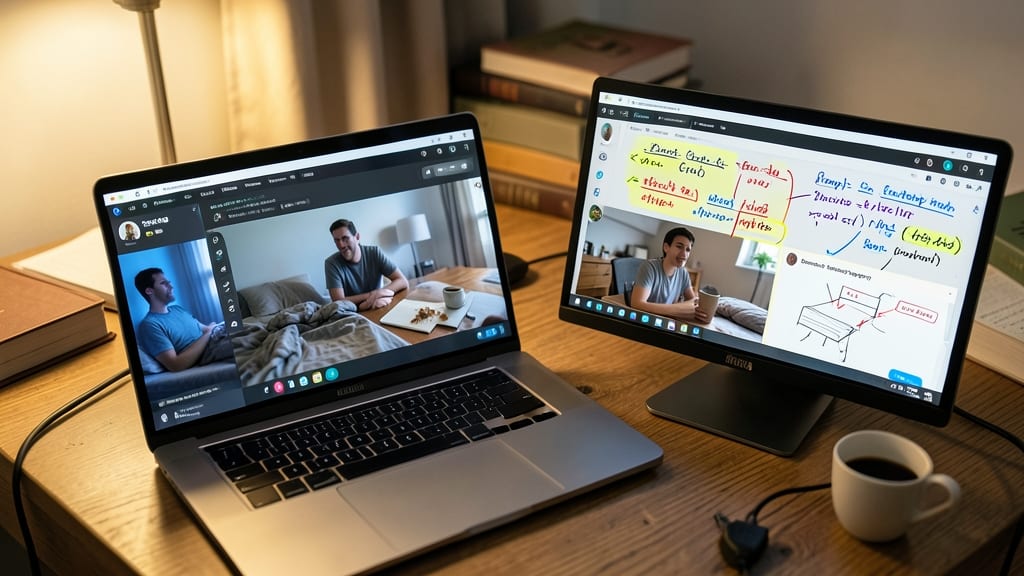
Tired of emailing drafts back and forth or losing track of the latest version of your group project? Microsoft Teams’ Office 365 integration lets you edit Word, Excel, and PowerPoint files directly in chat windows—no attachments, no confusion.
Open a shared document in Teams, and every team member sees changes in real time, with version history automatically saved. Need to crunch numbers for a group budget? Edit an Excel spreadsheet together while discussing it in the same chat. The synchronized hub ensures everyone’s working from the most up-to-date file, so no more “I thought you updated that” headaches.
Perfect for group projects, study sessions, or even solo work—just share the link, and your files stay organized in one place. No more digging through folders or wondering which version is current. ✨
Automated assignment tracking

Forget scribbling deadlines on sticky notes or missing assignments in a sea of emails—Microsoft Teams’ Planner feature turns your academic to-do list into a battle-tested system. It’s like having a personal assistant for your coursework, automatically syncing tasks across devices and nudging you with reminders before deadlines.
Create color-coded tasks for each class, assign subtasks to group projects, and set recurring deadlines (like weekly reading assignments). The integrated calendar view shows your workload at a glance, while progress bars visually track completion—perfect for visual learners. Best of all, it syncs with your school’s Office 365 calendar, so no more double-booked study sessions.
This is the ultimate tool for overcommitted students—whether you’re balancing AP classes, club meetings, and part-time jobs. Set it up once, and let Teams handle the rest. ✨
Professor-student communication hub
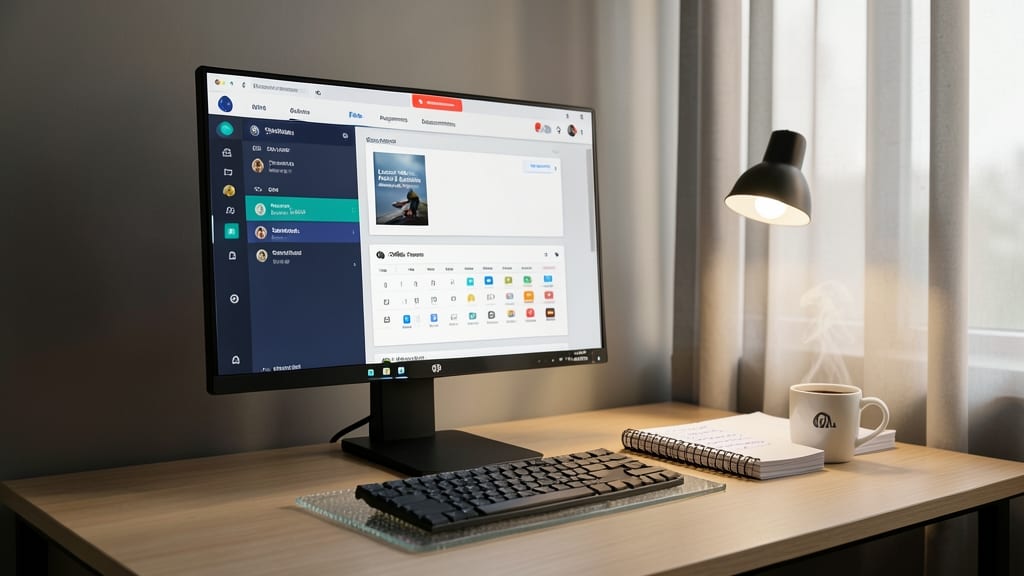
Tired of hunting through email spam for that one important assignment update? Microsoft Teams’ class channels create a single, organized hub where professors pin announcements, share lecture notes, and even host live office hours—all in one place.
With dedicated tabs for files, assignments, and discussions, you’ll never miss a deadline or forget about a study session. Professors can record video messages or upload PowerPoint slides directly to the channel, so critical updates stay visible without getting buried in your inbox. The @mention feature also lets instructors tag specific students for one-on-one clarifications, cutting down on back-and-forth emails.
This is especially useful for online or hybrid students who rely on digital communication. No more sifting through promotional emails or old threads—just a clean, searchable space for all class-related updates. ✨
Secure file sharing for large groups
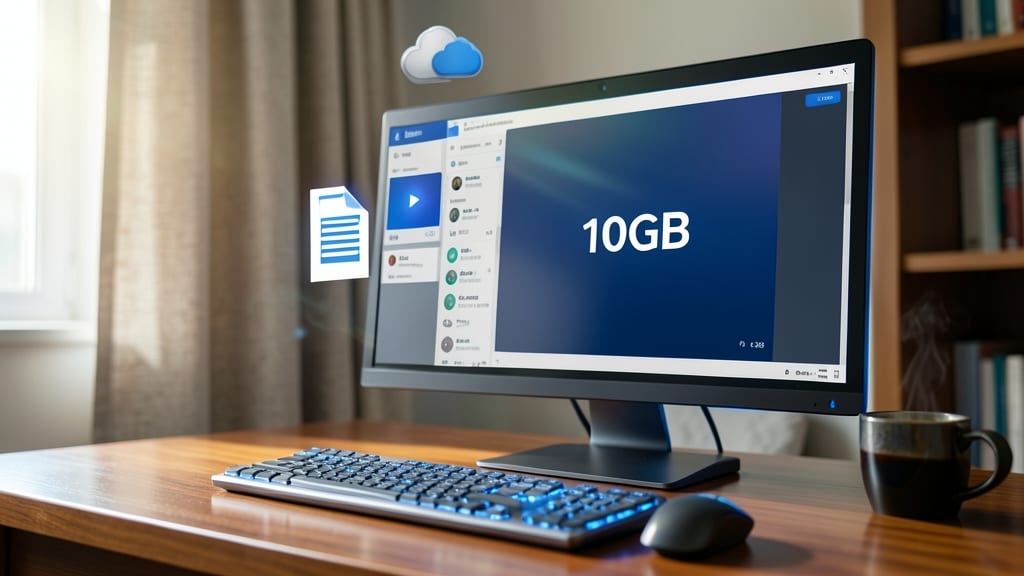
Forget the "file too large" email errors when sharing your 5GB capstone project or group video presentation. Microsoft Teams lets you upload files up to 2GB per attachment (or 10GB for shared folders) without workarounds—no WeTransfer links or cloud storage hassles.
Every file gets a version history, so you can track changes over time, revert to earlier drafts, and even see who made edits. Need to share a finalized PowerPoint with your team? Set permissions to "view-only" or "edit"—no more confusion over who has the latest version. The built-in encryption keeps sensitive drafts secure too.
This is your go-to for group projects with heavy files, whether you're collaborating on a film project or a data-heavy research paper. No more "I sent it to the wrong email" disasters—just seamless sharing with full control. ✨
Built-in polls and quizzes
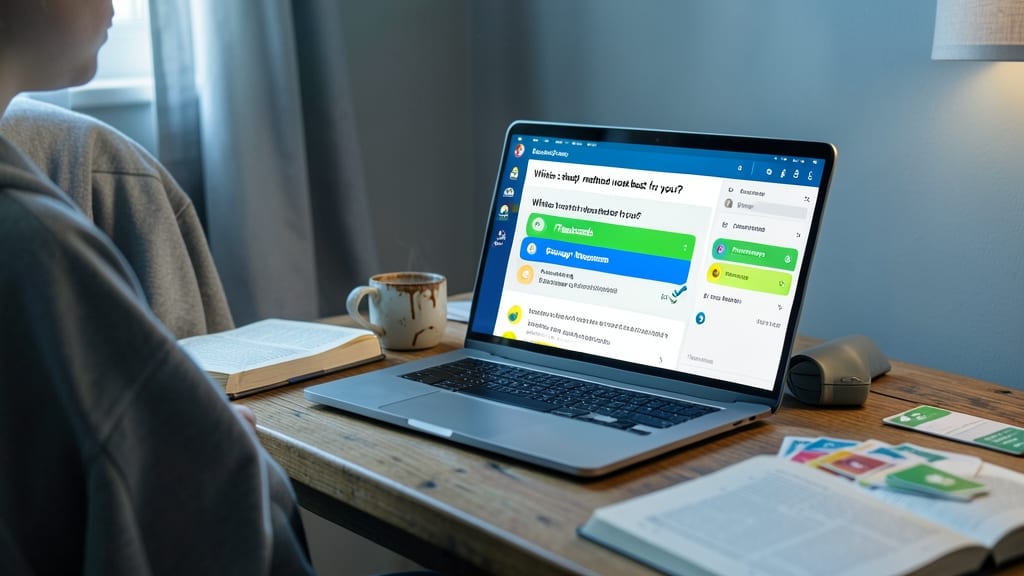
Turn passive class discussions into interactive learning with Teams’ built-in polls and quizzes—no extra apps required. Whether you’re voting on study methods or testing flashcards before a midterm, these tools turn group chats into dynamic learning spaces in seconds.
Create real-time polls with just one click (multiple-choice, emoji reactions, or text responses) to gauge class opinions on topics like project deadlines or lecture pacing. For self-assessment, use the quiz feature with timed questions, explanations, and instant results—perfect for practicing before exams. Results appear instantly, making it easy to spot trends or misconceptions.
Ideal for study groups or professor-led discussions, this feature works seamlessly on any device. No more awkward silence—just quick, data-backed insights to keep everyone engaged. ✨
Accessibility features for all learners
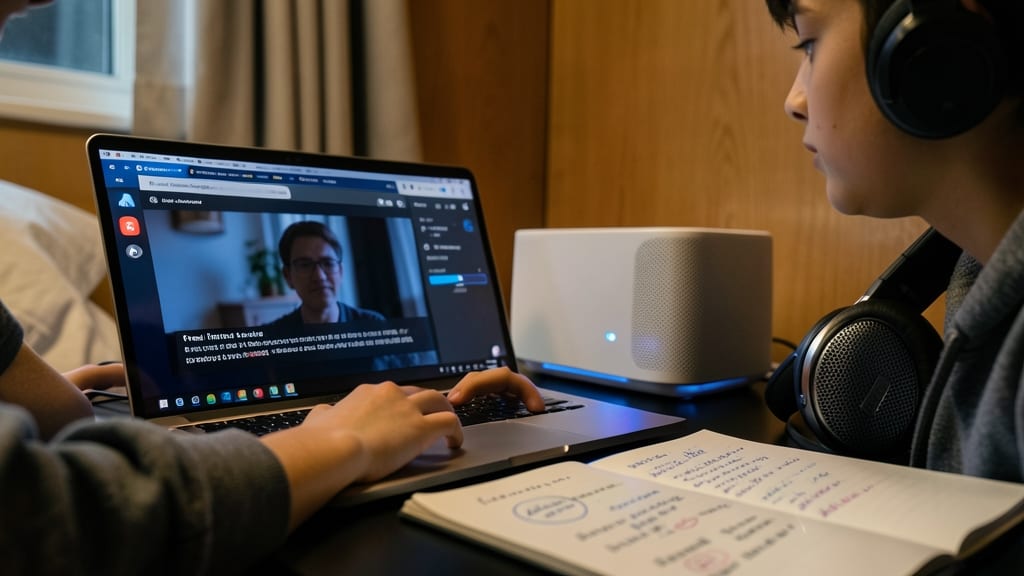
If you’ve ever struggled to follow a lecture due to background noise, relied on captions to understand spoken content, or needed text adjustments for better readability, Microsoft Teams’ built-in accessibility tools are a game-changer. These features ensure no student gets left behind—whether due to hearing differences, visual impairments, or language barriers.
Teams offers live captions in real time (with support for 40+ languages), screen reader compatibility via JAWS or NVDA, and customizable text sizes (up to 200% zoom). The high-contrast mode and keyboard shortcuts further simplify navigation, while closed captions can be added to recorded meetings. These tools work seamlessly across devices, so you’re never excluded from discussions or resources.
Perfect for students with disabilities, international learners, or anyone who benefits from visual or auditory adjustments—Teams makes education truly inclusive without requiring extra apps or workarounds. ✨
Mobile-friendly for on-the-go students
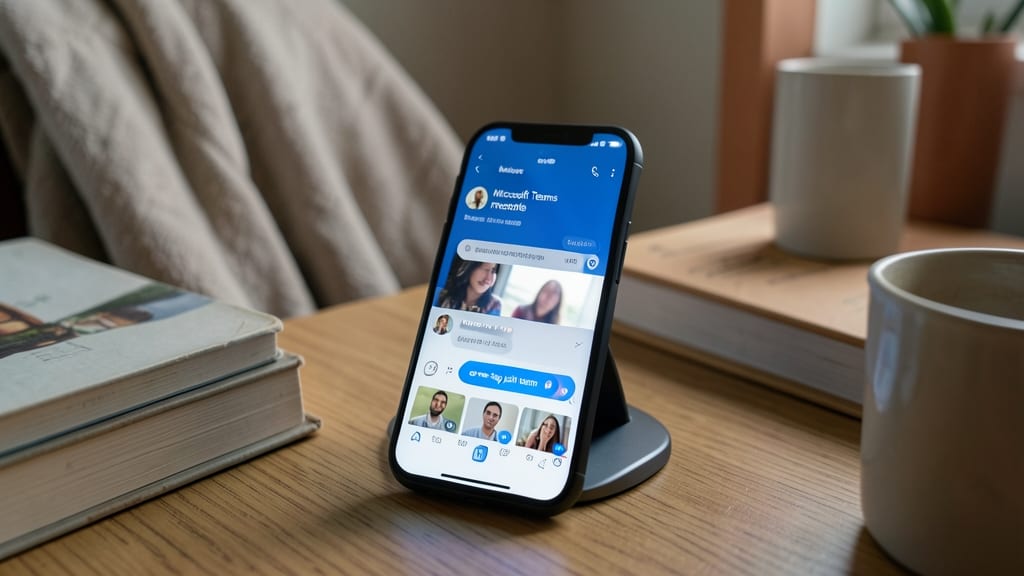
Between classes, shifts, and family time, your phone is your lifeline—but it shouldn’t be a productivity black hole. The Microsoft Teams mobile app turns your smartphone into a command center for school, with full access to chats, files, and meetings on the go.
You can join video calls with one tap, upload assignments directly from your camera roll, and even edit Office files in the mobile app (no laptop required). Push notifications for deadlines or messages ensure you never miss critical updates, while the offline mode lets you review materials during commutes or when Wi-Fi is spotty.
This is your secret weapon for students who thrive outside the classroom—whether you’re grabbing coffee between lectures, working a part-time job, or just need to check in from home. ⚡
Free for students with education accounts

Forget hunting for free trials or budgeting for apps—Microsoft Teams is already yours, completely free, if you have an Office 365 Education account. Schools automatically provide these licenses, so you can dive into Teams without spending a dime on subscriptions or in-app purchases.
All you need is your school email address (ending in .edu or your institution’s domain) to sign in. Once logged in, you unlock full Teams features, including unlimited channels, file storage, and video calls—no hidden fees or credit card required. It’s the rare tool that’s both powerful and zero-cost for students.
This makes Teams the perfect choice for international students, part-time workers, or anyone managing tight budgets. No financial barriers mean you can focus on what matters: collaborating smarter and acing your classes. 💻