
Software
Teachers juggle lesson plans, student communications, and grading—all while needing seamless collaboration tools. Microsoft Teams transforms classroom management by saving time, improving engagement, and integrating essential tools into one platform. Discover how this free tool can revolutionize your daily workflow and student interactions.
Real-time classroom communication without email chaos

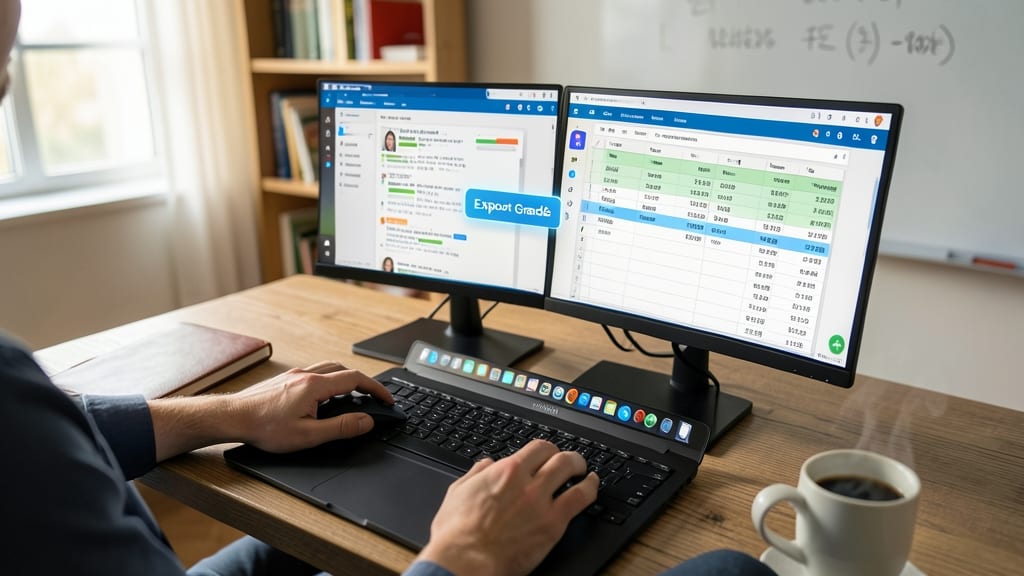
Tired of digging through overflowing inboxes where critical announcements get buried under spam or forgotten replies? Microsoft Teams’ dedicated class channels replace email chaos with a single, searchable hub where every message—from last-minute reminders to parent updates—stays visible and organized.
With read receipts, you’ll never wonder if a message was seen (or ignored), while threaded discussions keep related conversations tidy. Pin important announcements to the top of channels, and use @mentions to tag specific parents or students without clogging up group chats. The file-sharing integration lets you attach documents directly to messages, so parents get updates and resources in one place—no more chasing down attachments.
This is the perfect solution for elementary teachers juggling PTA communications or high school instructors managing multiple classes. Say goodbye to the email black hole and hello to clear, accountable communication—all without adding to your workload. 💡
Seamless integration with Microsoft Office Suite
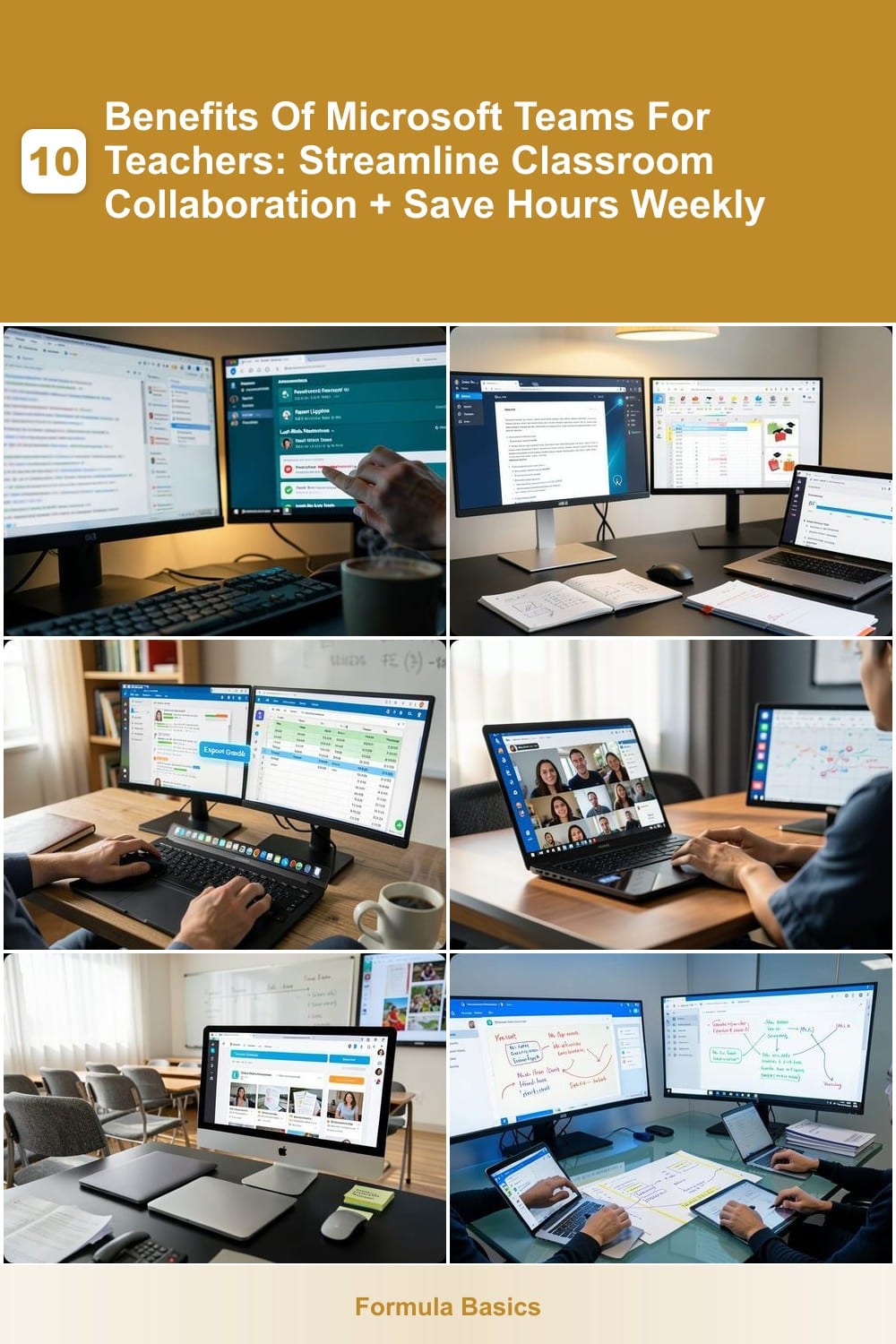
What if you could grade assignments, co-author lesson plans, and design presentations—all without leaving Microsoft Teams? This deep integration with Word, Excel, and PowerPoint turns your familiar Office tools into collaborative powerhouses within the platform itself.
Open a Word doc in Teams and instantly co-edit it with colleagues, track changes in real-time, and save directly to your class channel. Need to create a PowerPoint presentation? Launch it from Teams, add speaker notes, and share with students—no app-switching required. The Excel integration lets you build gradebooks or data trackers while referencing student work in the same window. Best of all, these files sync automatically with OneDrive, so your work stays backed up and accessible from any device.
This is the ultimate solution for busy educators who juggle multiple classes or subjects—whether you're a high school science teacher collaborating on lab reports or an elementary school instructor co-planning units with peers. Say goodbye to context-switching and hello to a streamlined, all-in-one workflow. 💡
Automated gradebook sync with OneNote class notebook
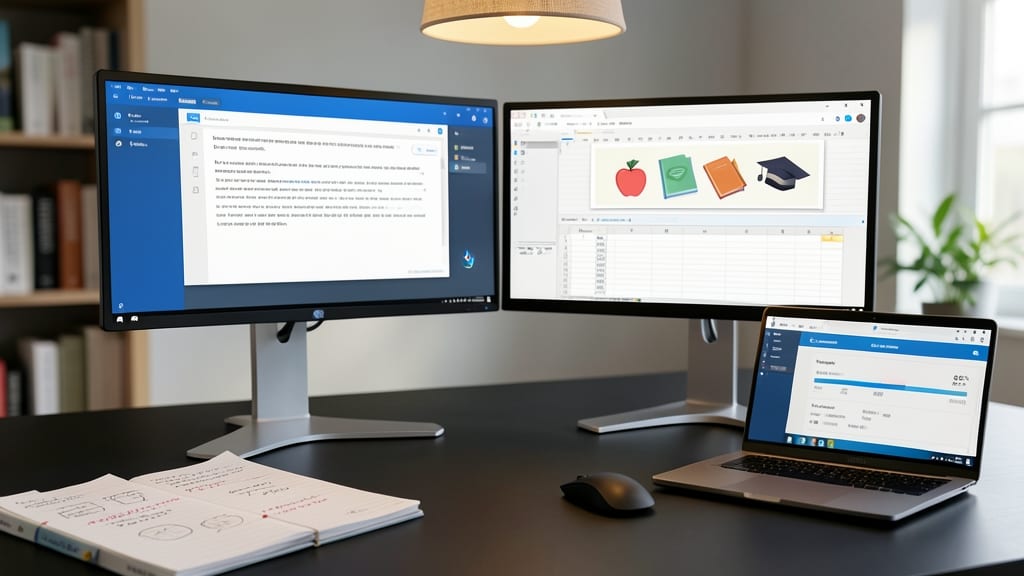
Say goodbye to late-night grading marathons. Microsoft Teams’ OneNote Class Notebook integration turns grading from a chore into a streamlined process by automatically syncing assignments and exporting scores to Excel or Google Sheets with just a few clicks.
With this feature, you can create digital rubrics, track student progress in real-time, and eliminate the need for manual data entry. The automated sync ensures all grades are updated instantly, while the ability to export to popular formats means you can use your preferred gradebook tool. For teachers grading 50+ assignments weekly, this can save up to 5 hours per cycle—time better spent on lesson planning or student feedback.
Perfect for educators drowning in paperwork, this tool is especially valuable for high-school teachers managing multiple classes or subject areas. 💻
Virtual classroom with built-in video conferencing

Tired of juggling multiple apps just to host virtual classes? Microsoft Teams eliminates the need for separate video conferencing tools by embedding a full-featured virtual classroom directly into the platform. With 4K video support, screen sharing, and breakout rooms, you can seamlessly transition between in-person and remote teaching without missing a beat.
This built-in solution includes real-time captions (for accessibility), whiteboard tools, and classroom layouts to keep students engaged. The integration with OneNote and assignments means you can share materials and collect work—all in one place. No more logging into Zoom or Google Meet; everything stays within your familiar Teams workspace.
Perfect for hybrid classrooms or fully remote teaching, this feature ensures consistent student participation and easy monitoring—whether you're leading a lecture or a small-group discussion. ✨
Parent-teacher connections through dedicated channels
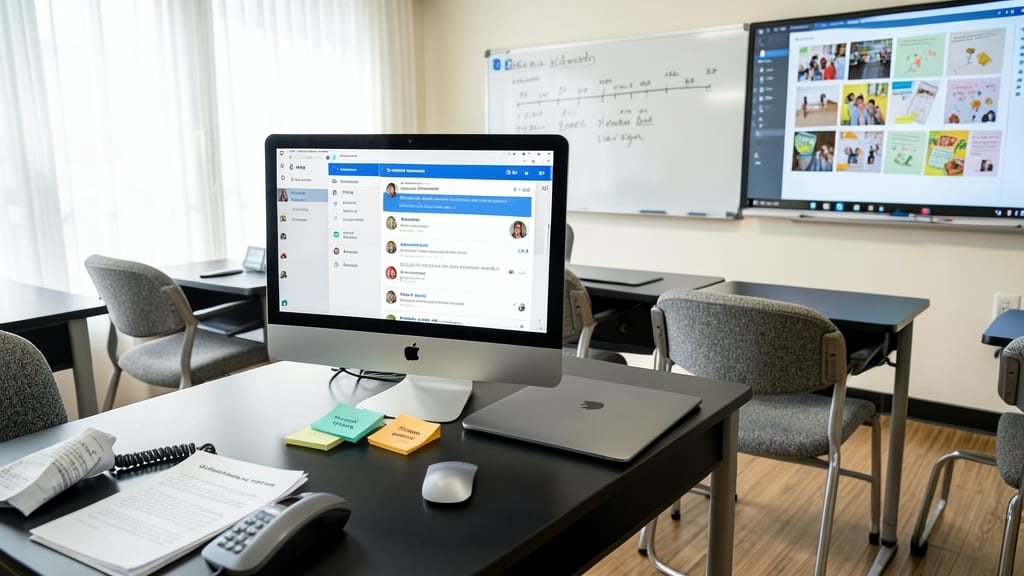
Tired of endless email threads and voicemails from parents asking the same questions? Microsoft Teams’ dedicated class channels create a single, organized hub where every parent has access to updates, assignments, and announcements—all in one place.
Set up a private channel per class where you can pin important documents, share student work samples, and post real-time updates. Parents receive notifications for new posts, while threaded discussions keep questions and answers visible for everyone. The @mentions feature ensures no message slips through the cracks, and file-sharing stays secure within the school’s Microsoft 365 Education environment.
Perfect for teachers juggling PTA communications, this tool cuts down on repetitive emails and phone calls while keeping parents informed—without adding to your workload. ✨
Collaborative lesson planning with peers
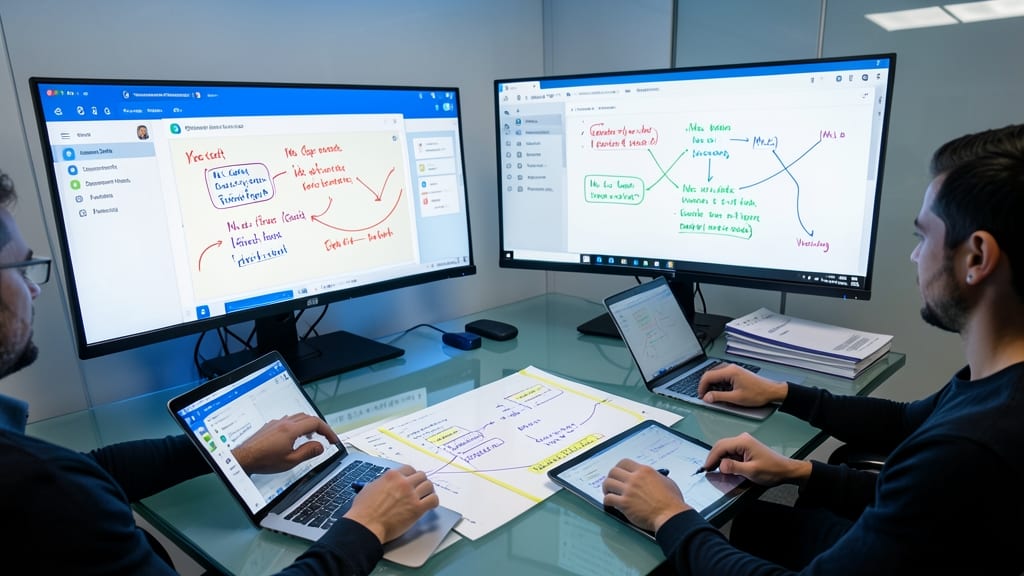
End those endless email chains and version-control headaches with Teams’ built-in co-authoring tools for lesson planning. Create a dedicated channel where your department can draft, annotate, and refine lesson plans together—no more tracking down the "final" version via email.
Teachers can simultaneously edit Word docs or PowerPoint slides, add comments directly on shared files, and even use the @mention feature to tag colleagues for feedback. The version history automatically tracks changes, so you’ll never lose progress mid-planning. Plus, integrate OneNote for brainstorming sessions or sticky-note-style idea boards.
Perfect for curriculum teams or subject-specific groups (like math or science departments) who need to align standards, share best practices, and roll out new units. Say goodbye to fragmented planning sessions—Teams keeps everything in one place, searchable and organized. ✨
Student engagement tools like polls and quizzes
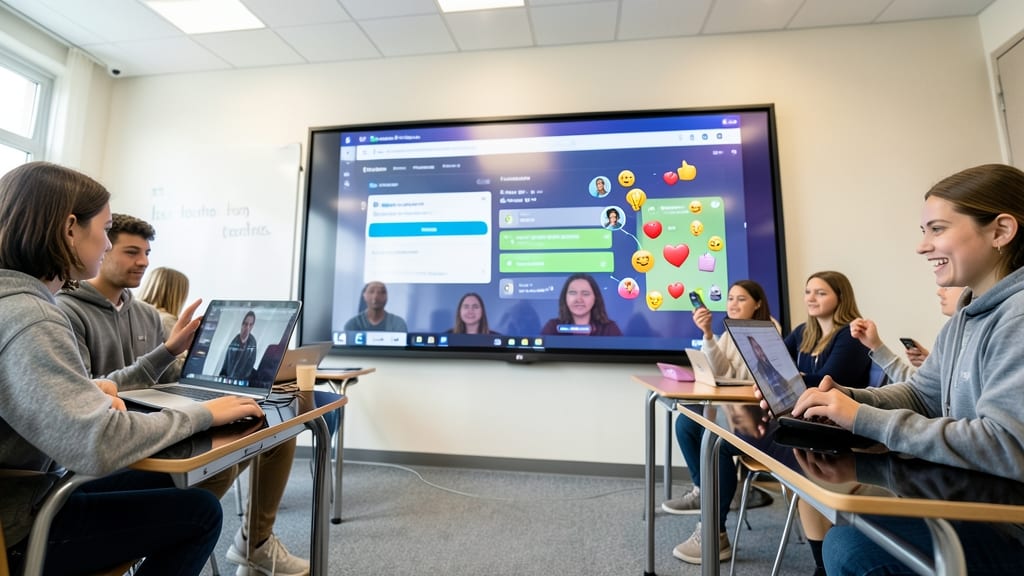
Turn passive learners into active participants with Microsoft Teams’ built-in engagement tools, designed to make every class feel interactive—no matter where students are. The polls, quizzes, and live reactions feature lets you instantly gauge understanding, spark discussions, or even play quick review games without leaving the platform.
Create multiple-choice polls in seconds (great for warm-ups or exit tickets) or dive deeper with custom quizzes that auto-grade responses and provide instant feedback. The reaction buttons (thumbs up, clapping, confused) let students signal their thoughts silently during lectures—ideal for shy learners or large classes where raising hands isn’t practical. Best of all, these tools work seamlessly in both live and asynchronous modes, so you can check comprehension even when students are learning remotely.
Perfect for middle/high school teachers covering subjects from science to history, or higher-ed instructors needing quick assessments. These tools turn one-way lectures into dynamic conversations—without the hassle of external apps. ✨
Secure file sharing and version control
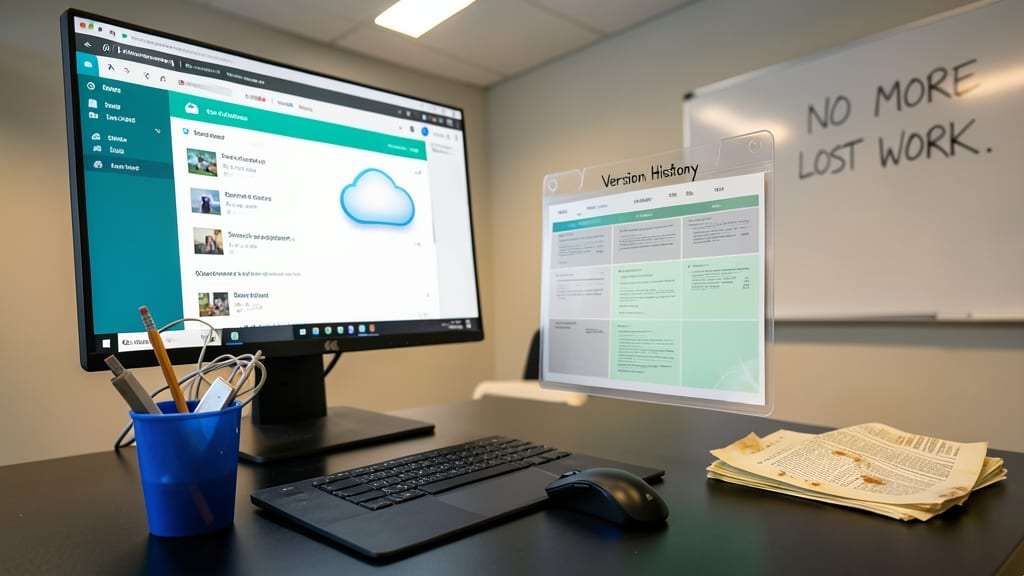
Forget chasing down lost USB drives or sifting through email chains—Microsoft Teams’ file-sharing and version control features keep student work organized and accessible from day one. With OneDrive integration, every assignment auto-saves to the cloud, while version history lets you track changes in real time, so you always see the most recent draft.
Students upload directly to secure class folders, eliminating the "I forgot my flash drive" excuses. Teachers can even restore previous versions if needed, and the @mention system ensures no submission slips through the cracks. Plus, permission settings keep files private until submission deadlines pass.
This is the ultimate solution for high school research projects or college-level group work, where collaboration and accountability matter most. ⚡
Customizable classroom tabs for organized workflows
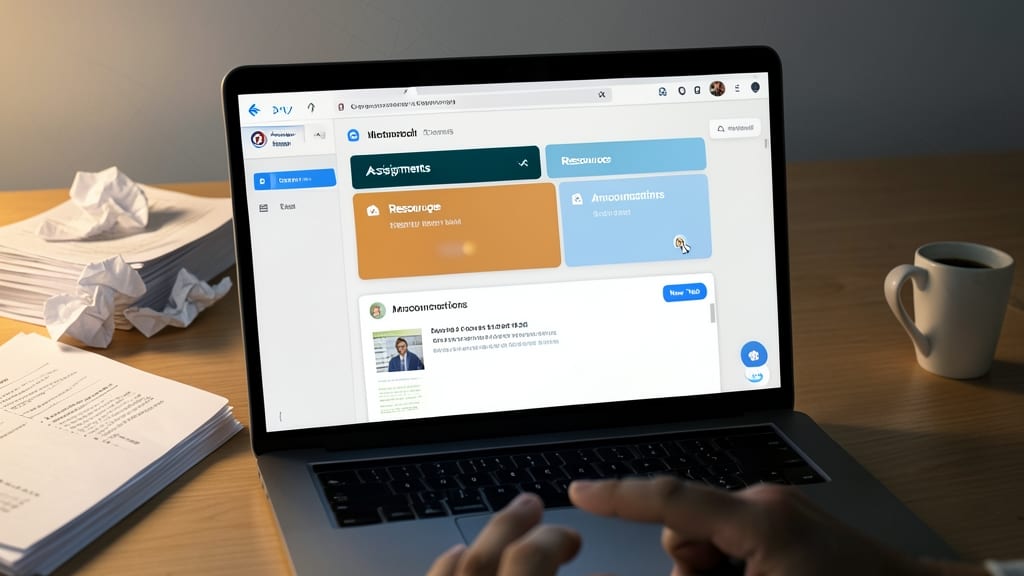
Ever wasted 10 minutes hunting for that one lesson plan buried in your email or desktop? Microsoft Teams’ customizable classroom tabs solve that with a single, personalized dashboard where you control what stays visible.
Create dedicated tabs for assignments, resources, and announcements—drag-and-drop to prioritize what matters most. Pin frequently used tools like OneNote, Forms, or classroom files directly into view, so everything critical is just a click away. The tab organization syncs across devices, so your setup follows you whether you’re grading at school or planning at home.
This is your command center for efficiency—perfect for teachers juggling multiple classes or subjects. Say goodbye to tab overload and hello to a workflow that adapts to your teaching style. ✨
Free access with Microsoft 365 Education
Worried about budget constraints holding back your school’s digital tools? Microsoft 365 Education removes that barrier entirely by offering all Teams features—plus Word, Excel, and OneDrive—completely free for eligible institutions.
Beyond cost savings, this program includes enterprise-grade security like FERPA-compliant data protection, multi-factor authentication, and admin-controlled device management. Schools also get 1TB of cloud storage per user and full Office Suite access, ensuring no compromise on functionality.
Perfect for underfunded districts or private schools, this eliminates the need for expensive subscriptions while keeping student data secure and compliant. ✨